> ## Documentation Index
> Fetch the complete documentation index at: https://docs.abundly.ai/llms.txt
> Use this file to discover all available pages before exploring further.
# Google Drive
> Access files, create documents, and work with spreadsheets
Connect Google Drive so your agent can work with files in your Drive account. There are two capabilities you can choose from: file-scoped **Google Drive** and broader **Google Drive (Full Access)**.
## Which capability to use
| Capability | Access scope |
| ------------------------------ | ------------------------------------------------------------------------------------------------------------------------------------------------------------ |
| **Google Drive** | Only specific files you share with the agent, plus files the agent creates. |
| **Google Drive (Full Access)** | All drives and folders you approve for the token. Hidden by default — email [support@abundly.ai](mailto:support@abundly.ai) to enable it for your workspace. |
**Which one should I pick?** Start with the file-scoped **Google Drive** capability — it covers most needs and keeps the agent's reach narrow. **Full Access** requests broad access to your whole Drive, so it is available on request rather than switched on by default.
If what you need is a whole **folder** rather than individual files, you don't need Full Access: use the **service account** mode of the file-scoped capability (below) and share the folder with the service account's email. Files added to that folder later are covered automatically.
## Authentication modes
The **Google Drive** capability card offers two modes:
* **Personal** — Connect your own Google account and share specific files (the default).
* **Service account** — Reference a Google service account JSON key (stored as a workspace secret). The agent accesses exactly what's shared with the service account's email, with no personal token. Best for autonomous, per-agent access.
To set up service account mode: in Google Cloud, create a service account, enable the **Google Drive API**, **Google Docs API**, and **Google Sheets API**, download its JSON key, and store it as the secret on the capability card. Then share the files or folders the agent needs with the service account's email. The capability card includes step-by-step guidance.
A service account has no storage of its own, so to let the agent **create** files, give it **Content manager** access to a Shared Drive (the whole drive or a folder inside it).
## How to enable
Go to **Settings → Capabilities** and enable **Google Drive** or **Google Drive (Full Access)**.
Click **Create new** to sign in with your Google account and create a personal access token. This token belongs to you and can be managed in your profile settings.
If you already have a matching Drive token from setting up another agent, you can select it from the dropdown instead.
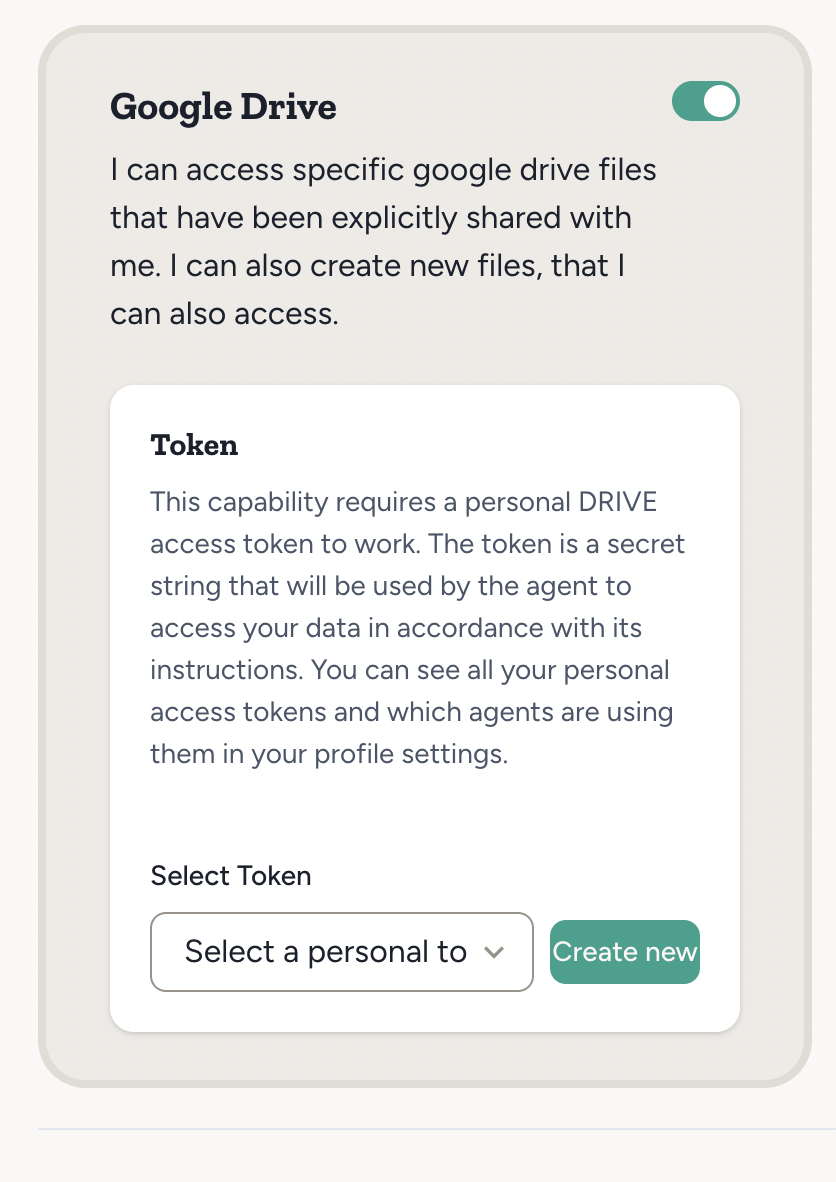 * **Google Drive:** On the **Google Drive** capability card (under **Settings → Capabilities**), use the **Files** section to share one or more specific Drive files with your agent. You can remove access later. The agent can also access files it creates itself.
* **Google Drive (Full Access):** After OAuth, Abundly takes you to a settings page where you can pick which drives (My Drive and any shared drives) to allow, and optionally narrow access to specific folders within each drive. Choose **Allow All & Continue** to keep broad access, or **Save & Continue** to apply a restricted scope from the start.
You can update Full Access drive and folder selections later from **Profile settings → Personal Tokens**.
## What your agent can do with Drive files
* **Read:** Google Docs (whole document or a specific tab), Sheets, and Slides, plus text files, PDFs, and common Office files (Word, Excel, PowerPoint)
* **Visual PDF extraction:** Extract content from complex PDFs (scanned documents, tables, charts, or tricky layouts) using vision-based page extraction — no need to import the file first
* **Edit:** Google Docs (whole document, or one tab without touching the others) and Google Sheets that the agent has access to
* **Create:** New Google Docs and Google Sheets in your Drive, and new tabs in an existing Google Doc
## If your token expires or is revoked
OAuth tokens refresh automatically in normal use. If your Google Drive access has been revoked or can no longer be refreshed, use **Reconnect** where available (the Drive capability card or **Personal Tokens**) to re-run consent on the same token so agents keep using the existing token reference.
## Example use cases
* **Document creation** — "Create a summary doc in Google Drive from this meeting transcript"
* **Data analysis** — "Read the data from this spreadsheet and give me the key insights"
* **Data entry** — "Remove the toasters product from the pricing spreadsheet"
* **Data updates** — "Update the quarterly report in Drive with the latest figures that John just posted in Slack"
* **Google Drive:** On the **Google Drive** capability card (under **Settings → Capabilities**), use the **Files** section to share one or more specific Drive files with your agent. You can remove access later. The agent can also access files it creates itself.
* **Google Drive (Full Access):** After OAuth, Abundly takes you to a settings page where you can pick which drives (My Drive and any shared drives) to allow, and optionally narrow access to specific folders within each drive. Choose **Allow All & Continue** to keep broad access, or **Save & Continue** to apply a restricted scope from the start.
You can update Full Access drive and folder selections later from **Profile settings → Personal Tokens**.
## What your agent can do with Drive files
* **Read:** Google Docs (whole document or a specific tab), Sheets, and Slides, plus text files, PDFs, and common Office files (Word, Excel, PowerPoint)
* **Visual PDF extraction:** Extract content from complex PDFs (scanned documents, tables, charts, or tricky layouts) using vision-based page extraction — no need to import the file first
* **Edit:** Google Docs (whole document, or one tab without touching the others) and Google Sheets that the agent has access to
* **Create:** New Google Docs and Google Sheets in your Drive, and new tabs in an existing Google Doc
## If your token expires or is revoked
OAuth tokens refresh automatically in normal use. If your Google Drive access has been revoked or can no longer be refreshed, use **Reconnect** where available (the Drive capability card or **Personal Tokens**) to re-run consent on the same token so agents keep using the existing token reference.
## Example use cases
* **Document creation** — "Create a summary doc in Google Drive from this meeting transcript"
* **Data analysis** — "Read the data from this spreadsheet and give me the key insights"
* **Data entry** — "Remove the toasters product from the pricing spreadsheet"
* **Data updates** — "Update the quarterly report in Drive with the latest figures that John just posted in Slack"