

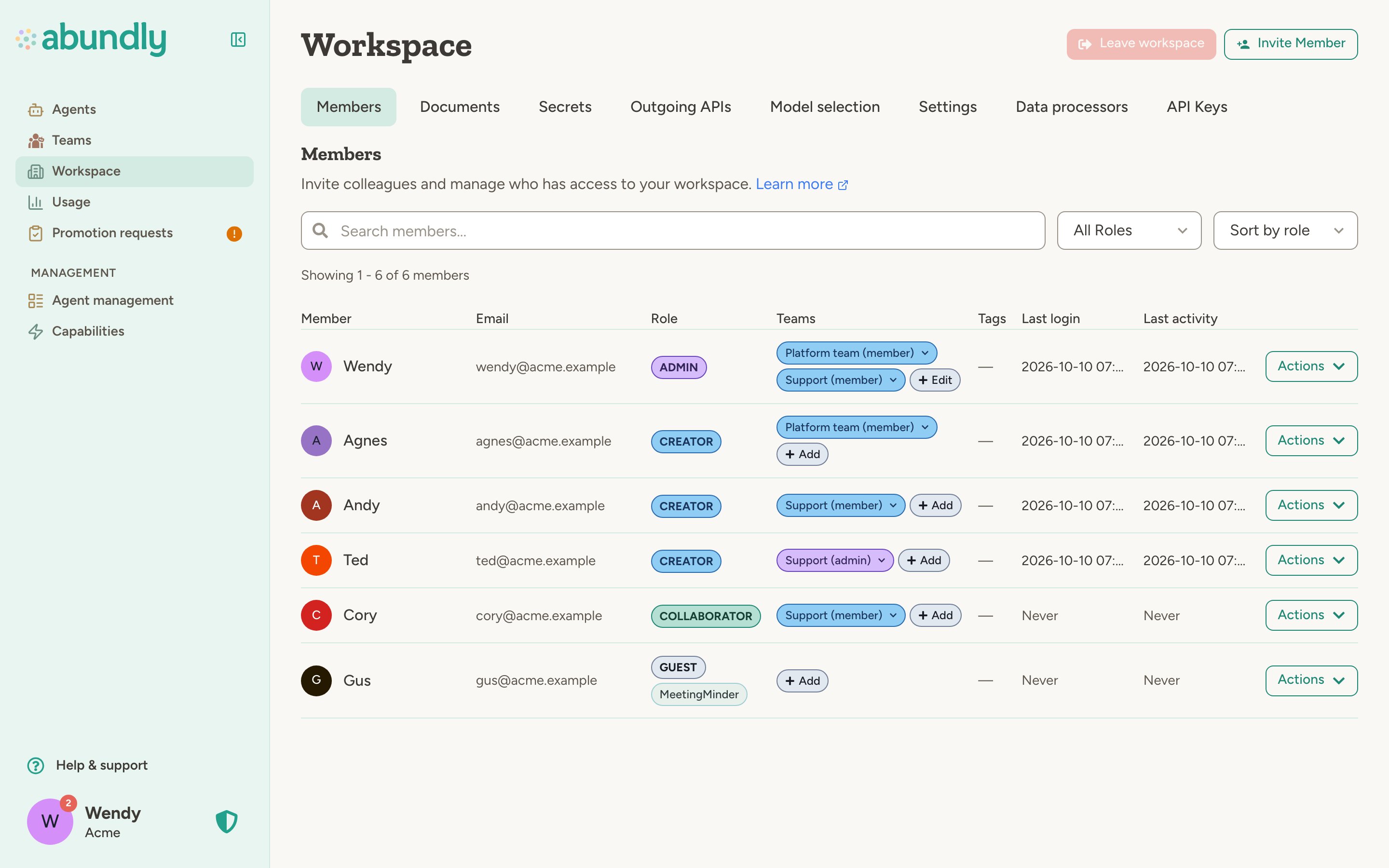
Workspace roles
Every user in your workspace has a role that determines their base level of access:
Workspace admins can open any agent that isn’t restricted or personal, in any team, at the agent’s default access level—or higher, if they have a user-specific rule. Being an admin doesn’t make you an agent’s owner. On the Agent Management page, admins can also oversee every agent, restricted and personal ones included. See Workspace Members for how to assign roles.
Agent access levels
Each agent has access settings that control what workspace members can do with it. There are four levels:
The hierarchy is: Owner > Edit > Use > Nothing. Owner was previously called Full Access; it is the same level.
Every level from Use up lets the person read all of the agent’s chats, not only their own: chats other people started, conversations from channels like Slack, Teams, and email, and everything from before they got access. The same goes for the agent’s documents and activity log. When you add a person, invite someone by email, raise the default access from Nothing, or share the agent with other teams, a confirmation reminds you of this.
Default access vs. user-specific access
Agent access is controlled through two settings, found in the agent’s Settings > User access tab: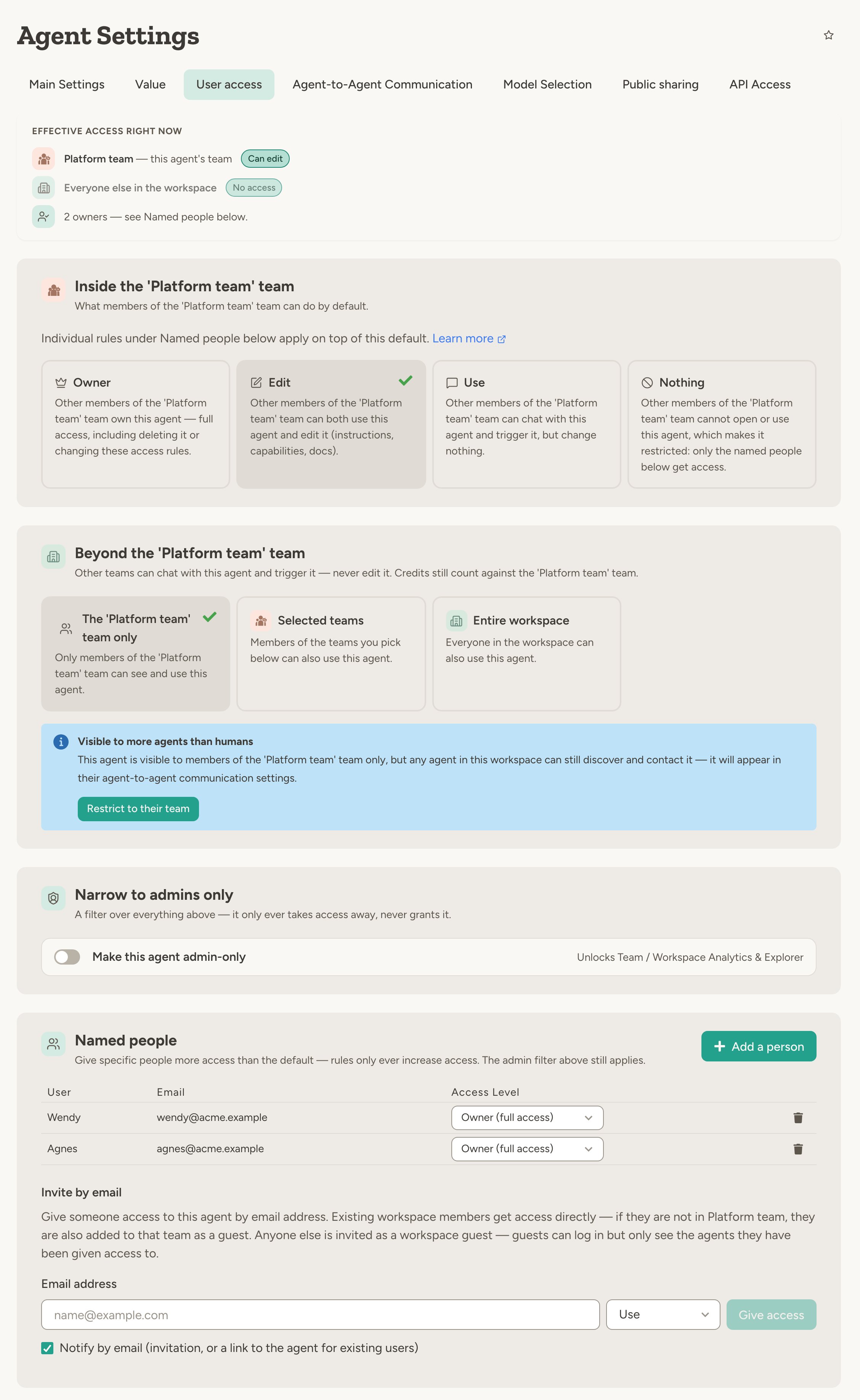
User-specific rules only ever increase access: the effective level is the higher of the default and the person’s rule. A rule can never take access away — to restrict someone, lower the default and give everyone else a higher individual rule instead.
Restricted agents
When you set the default access to “Nothing,” the agent becomes restricted:- Only the people named on it can open it—chat with it, read its instructions, or see its chats, documents, activity log, and diary
- It doesn’t appear in anyone else’s agent list
- Admins oversee it from the outside, but being an admin doesn’t give access to it
What admins can see and do with restricted agents
No agent is hidden from the people responsible for the workspace. Workspace admins see every restricted agent on the Agent Management page, and team admins see the restricted agents in their teams. They see its shell—what its owners wrote about it and what it costs—but not its inside, which belongs to the people named on it. Admins can:- See that the agent exists, who has access to it and at what level, its description, value statement and key metrics, and its credit usage
- See what it’s built from: its capabilities, connected outgoing APIs and MCP servers, and whether it’s exposed through a widget, HTTP API, MCP server, or webhooks
- Enable or disable it, and change its model, daily and monthly credit limits, tags, and lifecycle phase
- Move it to another team they manage. The move dialog shows who will lose access—people who aren’t members of the new team, owners included
- Choose its owners and who has access, themselves included
- Delete it
- Read its instructions or capability settings, or open its chats, documents, activity log, or diary
- Trigger it with a message
Inviting guests by email
The Invite by email section on the agent’s User access tab lets you grant access to this agent by email address — including to people who are not in your workspace yet:- If the email belongs to an existing workspace member, they get the chosen access level directly. If the agent belongs to a team they are not in, they are also added to that team as a Guest, so the access actually takes effect.
- Otherwise an invitation is sent (the email is optional — the invite also appears when the person logs in). When they accept, they join the workspace as a Guest and receive the chosen access level on the agent.
From the UI, guests can be granted Use or Edit access. Their access to the agent works exactly like any other user-specific access rule.
Admin-only agents
In each agent’s Settings > User access tab, under Narrow to admins only, owners can make an agent admin-only, so that only admins can see and interact with it in the portal. There are three levels:
When an agent is admin-only, only admins at the chosen level can open the agent—its chats, documents, and settings—regardless of any default or user-specific access rules above. Admin oversight on the Agent Management page is not narrowed: team admins of the agent’s team still see it there, just like a restricted agent. On the Agent Management page, admin-only agents carry a shield badge whose tooltip says exactly who can open them.
Make agents admin-only when they work with internal data — billing, analytics, member lists, audit logs — that the rest of the workspace or team shouldn’t see. Some capabilities (for example workspace and team analytics) only work on admin-only agents at the matching level, for the same reason.
Because Team admins only is defined by the agent’s team, an agent at that level can’t be moved out of its team into the workspace-global space. Change the setting first, then move it.
Admin-only narrows the portal only. External entry points an admin has enabled — embeddable widget, HTTP API, MCP, webhooks, public clone link — keep working under their own authentication. Agent-to-agent communication is also unaffected, so other agents can still reach the agent if they’re configured to.
Teams
For larger workspaces, teams add another layer of access control between the workspace and individual agents:- Agents can belong to a team
- Users must be members of that team to access the agent (unless they’re workspace admins). A personal agent is the exception: only the people named on it can open it, admins included.
- Team admins can manage agents within their team
Teams are an enterprise feature. Contact support@abundly.ai to enable them for your workspace.
Making a team agent available to other teams
An agent that belongs to a team can optionally be made available beyond it, from the Beyond [team] panel in Settings → User access. You can pick selected teams or the entire workspace. Only the agent’s owners can change this. The agent still belongs to exactly one team, and all of its credit usage is still counted against that team. People reached through this sharing always get Use access at most — they can chat with the agent and trigger it, but they can never edit it, however high the workspace default access is set. Everything else about access still applies:- If the agent’s workspace access is Nothing (a restricted agent), sharing on its own grants nothing — users outside the agent’s own team still need an individual access rule.
- Guests of a shared team don’t get access by default, exactly as in the agent’s own team.
- If the agent is admin-only, that still narrows the shared audience: only admins within it can use the agent.
Agent-to-agent access
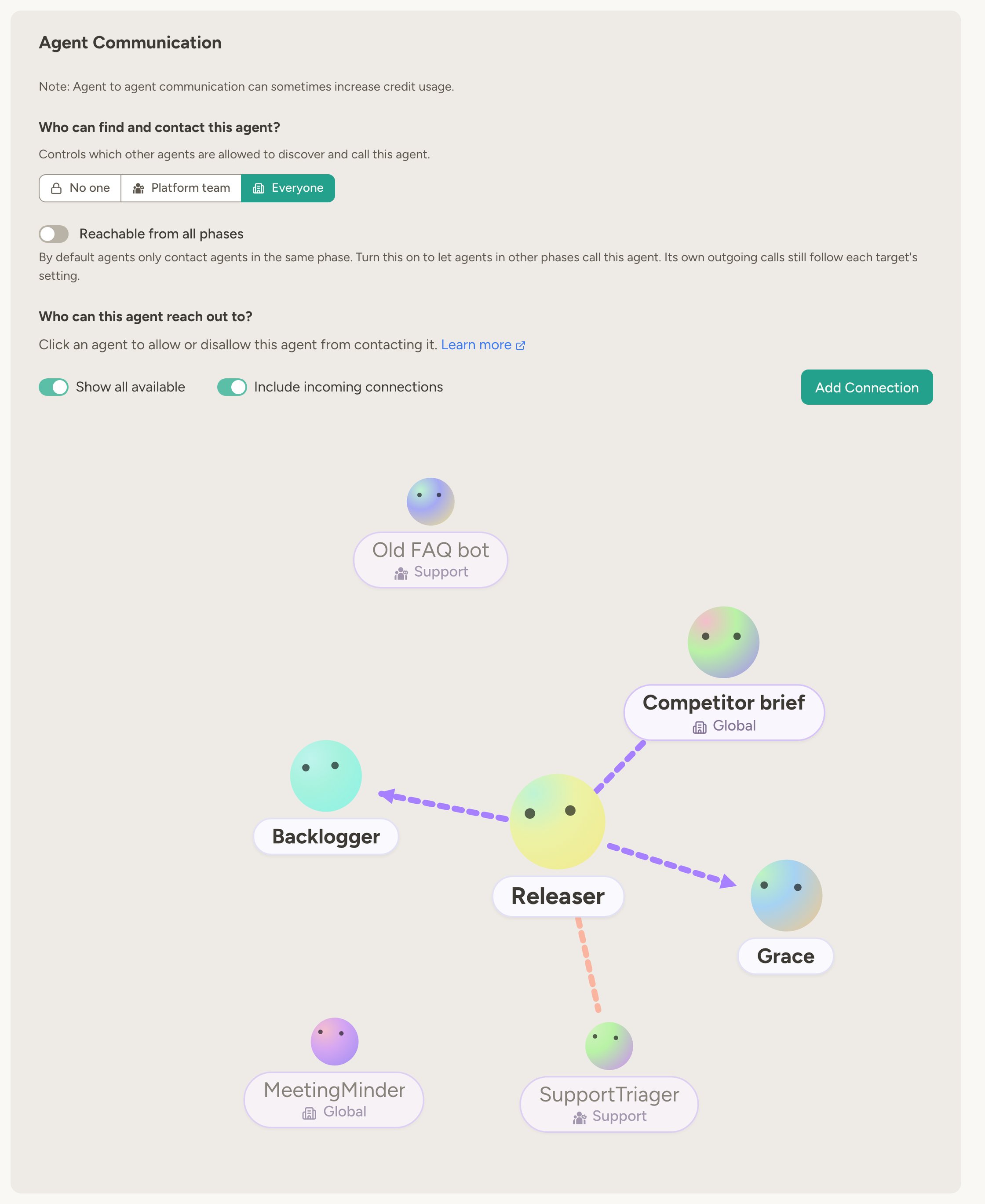
Agent-to-agent access is configured per agent in Settings → Agent Communication, and has two sides:- Discoverability (inbound) — who is even allowed to reach this agent: No one, Team (agents in the same team, default), or Everyone (any agent in the workspace, including across teams). With No one or Team you can also allow specific agents by name, whatever team they’re in.
- Outbound — which other agents this agent is configured to call. Picked explicitly per target from the communication graph.
Best practices
Start with restrictive defaults. Set the default access to “Use” or “Nothing” for sensitive agents, then grant higher access to specific users who need it. Use teams for scale. If you have many agents or multiple departments, teams make access management much simpler than per-agent user rules. Review access after membership changes. When someone leaves or changes roles, audit their access to ensure it’s still appropriate. Keep at least one owner—ideally two for restricted agents. The User access tab won’t let you remove an agent’s last owner. If the only owner of a restricted agent leaves the workspace, nobody can open it until an admin adds a new owner on the Agent Management page.FAQ
What's the difference between 'Edit' and 'Owner'?
What's the difference between 'Edit' and 'Owner'?
Edit access lets you modify how the agent works—instructions, capabilities, documents, and other settings.Owner (full access) includes everything in Edit, plus the ability to delete the agent and change who else can access it.
Can I restrict a user to less access than the default?
Can I restrict a user to less access than the default?
No—rules only increase access, so a rule below the default has no effect. To restrict a person, lower the default access level and grant everyone else a higher individual rule. To remove a rule entirely, click the red trash button next to their row.
Can Guests use agents?
Can Guests use agents?
Guests cannot access agents through the default access level—they need explicit user-specific access to each agent. This makes the Guest role useful for external collaborators who should only see specific agents.
Do I need to be in a team to access an agent in that team?
Do I need to be in a team to access an agent in that team?
Yes. If an agent belongs to a team, you must be a member of that team to access it. The exception is workspace administrators, who can open agents in any team—except restricted and personal agents, which only open for the people named on them.
Can admins see restricted agents?
Can admins see restricted agents?
Yes, but only from the outside. Admins see every restricted agent they oversee on the Agent Management page—who has access, its description, what it’s built from, and its credit usage—and can disable it, limit its credits, change its model, move it, or delete it. They can’t read its instructions or open its chats, documents, activity log, or diary, unless they add themselves to it, which is logged. See What admins can see and do with restricted agents.
Can admins see personal agents?
Can admins see personal agents?
Only from the outside. Workspace admins see every personal agent on the Agent Management page—who owns it and who else has access, its description, value statement and key metrics, which capabilities and integrations it has, and what it costs—and can disable it, limit its credits, change its model or lifecycle phase, or delete it. They can’t read its instructions, chats or documents, trigger it, move it, or give themselves access. Team admins don’t see personal agents at all.
What if a restricted agent's only owner leaves?
What if a restricted agent's only owner leaves?
Nobody can open the agent until an admin adds a new owner on the Agent Management page, which is logged like any other access change. For someone’s personal agent, admins can only disable or delete it; contact support@abundly.ai if its contents need to be handed over.
Can agents access each other's data?
Can agents access each other's data?
Only if you explicitly configure agent-to-agent communication between them. By default, agents are isolated—they can’t see each other’s documents, databases, or conversations.
What happens when someone leaves the workspace?
What happens when someone leaves the workspace?
Remove them from the workspace in the Members page. They’ll immediately lose access to all agents and data. Their past conversations and actions remain in the logs. Their agent access rules are kept, so if they’re invited back later, they get the same access again.If they were the only owner of a restricted agent, add another owner before removing them—see the previous question.
Learn more
Agent Management
Workspace-level agent and capability controls
Teams
Organize agents and users by department or function
Multi-Agent
How agents collaborate and communicate