

Why guardrails matter
Telling an agent “don’t email external domains” in its instructions is helpful, but not foolproof. LLMs can be tricked, confused, or make mistakes. Guardrails provide a hard limit that works regardless of what the agent thinks it should do. The agent never gets a chance to override this—the check happens at the platform level before the action executes.Capability-specific guardrails
Different capabilities have different guardrail options. Configure these in each capability’s settings.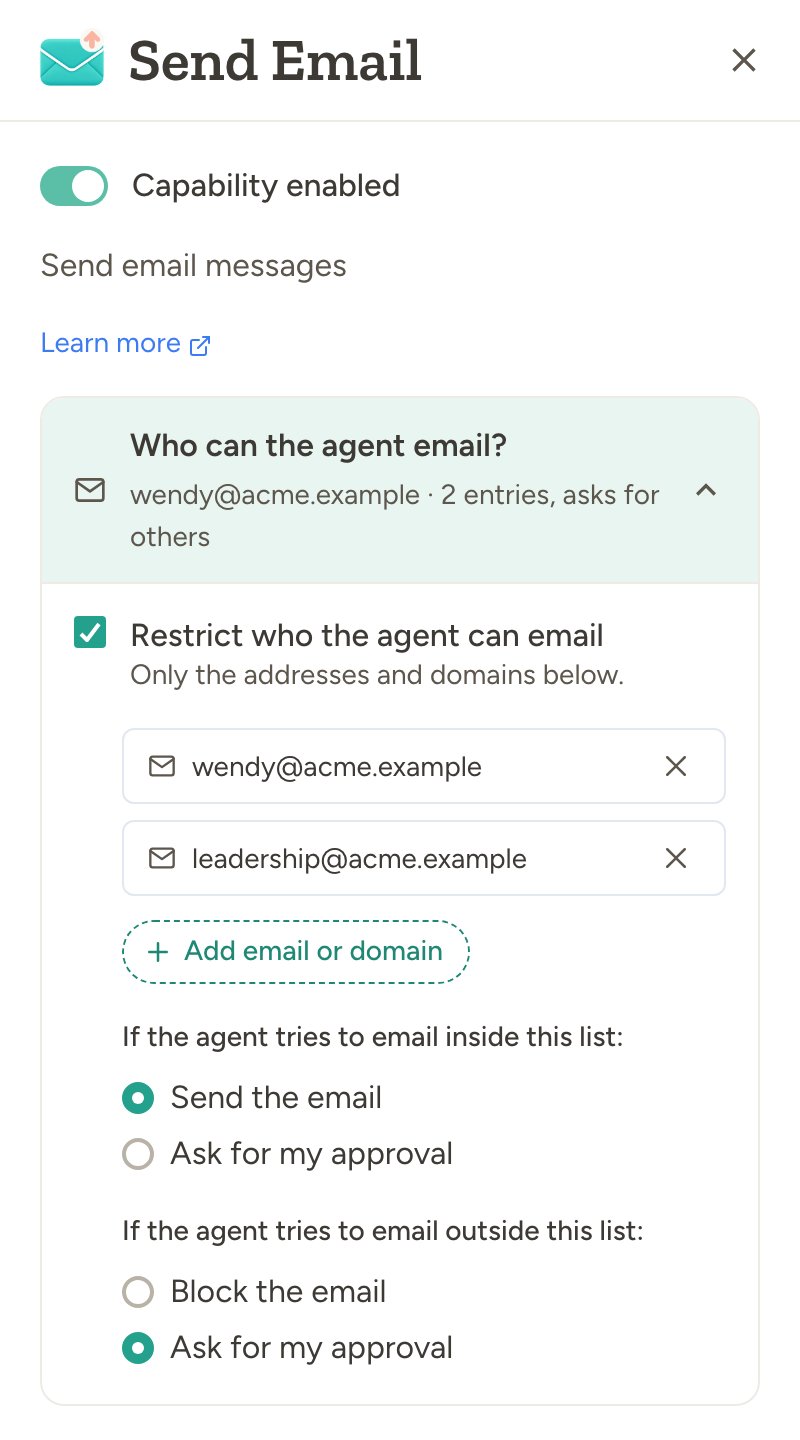
A typical setup is restrict-on with “send inside” and “ask outside” — the agent can email known contacts freely, and you review anything new. When restriction is off, you instead get a single “ask before every email” toggle. See User Approval for how the approval flow works.
The same settings govern Gmail, Outlook and Microsoft 365 Assistant agents once Allow sending email is on for them; with it off, those agents can only save drafts.
Other capabilities
- SMS and Phone calls — Same allow-list plus inside/outside-list approval model. See Email & SMS and Voice for details.
- Slack — Optional allow-list of channels the agent can use, and a toggle to disable direct messages. See Slack channel restrictions for details.
- HTTP requests — Optional approval for each request. See HTTP Requests for details.
Configuring guardrails
- Open the agent and navigate to Capabilities in the sidebar
- Click on the capability you want to configure (Email, SMS, Phone, etc.)
- Choose whether to restrict recipients, configure the allow-list, and set the inside-list and outside-list rules
- Test by trying an action that should be blocked or require approval
Workspace-level controls
Workspace administrators can control which capabilities are available to agents across the workspace. This is configured on the Capabilities page under Workspace management: pick the workspace or a team at the top, then click a capability row to edit it. They can also limit which LLM models agents may pick for new work under Workspace management → Model selection (models disabled platform-wide by Abundly cannot be turned on there).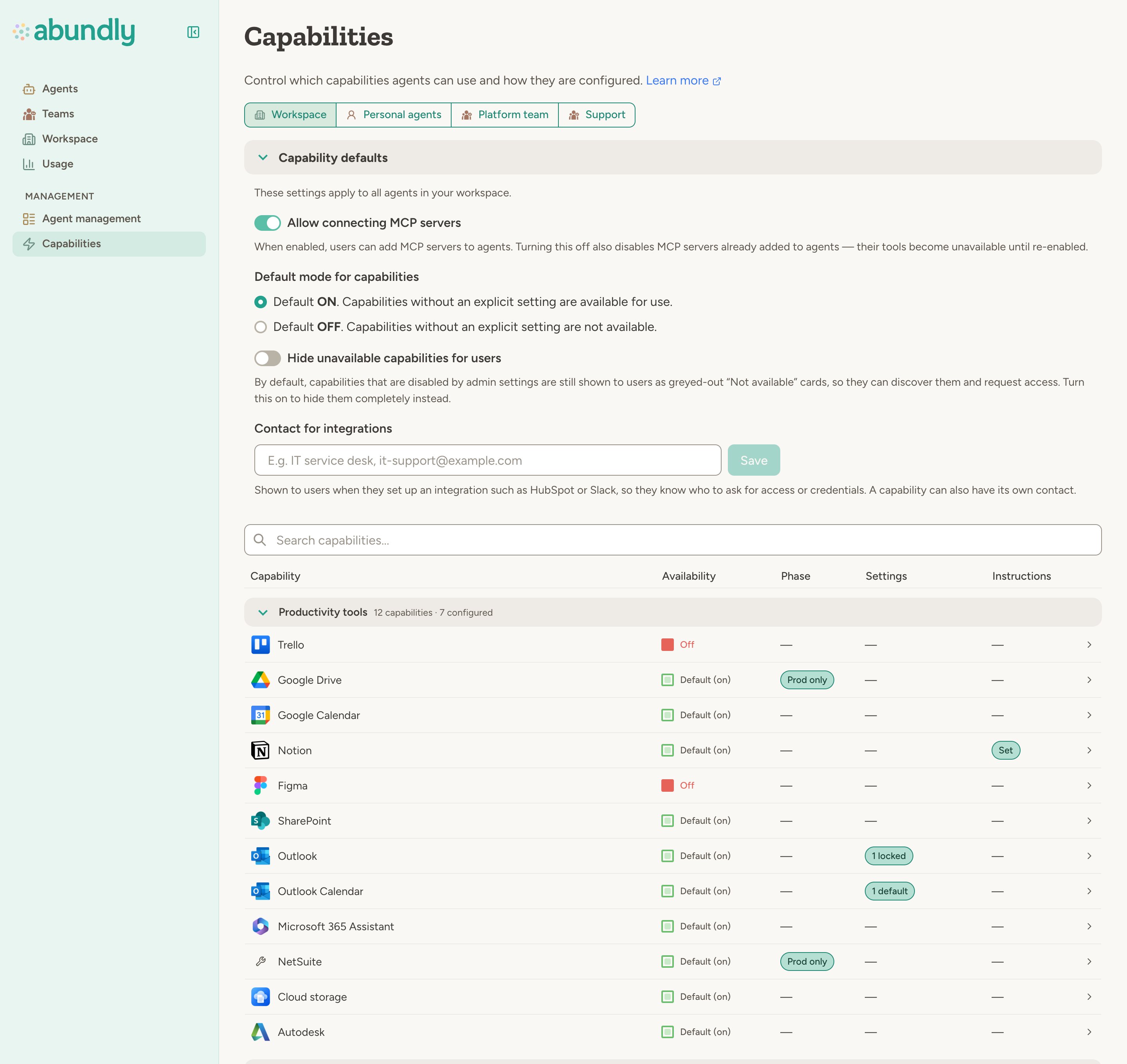
Capabilities disabled at the workspace level cannot be enabled by individual agents.
Workspace administrators can also configure attack detection notification behavior in Workspace → Settings.
If your workspace uses teams, team administrators can set additional restrictions for their team,
but cannot enable capabilities that are disabled at the workspace level.
Best practices
Start restrictive. Begin with tight guardrails—require approval for external communication, limit capabilities to what’s needed. You can always loosen them as you gain confidence. Combine an allow-list with “ask for approval” outside it. This lets agents work freely with known contacts inside your organization while routing anything new through you. It’s a good balance of autonomy and safety. Review blocked and approved actions. Check the activity log periodically to see what’s being blocked or approved. This helps you identify false positives (legitimate actions being blocked) and tune your configuration. Match guardrails to risk. A customer-facing agent needs tighter guardrails than an internal research assistant. See Risk & Autonomy for guidance on assessing risk.FAQ
Can an agent bypass guardrails through clever prompting?
Can an agent bypass guardrails through clever prompting?
No. Guardrails are enforced by platform code, not LLM reasoning. The agent can’t talk its way past an allow-list check—the platform simply won’t execute the blocked action.
What happens when an action is blocked?
What happens when an action is blocked?
If the outside-list rule is “Ask for approval”, the action goes to the approval queue (see User
Approval). If the outside-list rule is “Block”, the action fails outright and the agent is
notified that the recipient isn’t allowed.
Can I set guardrails that apply to all agents?
Can I set guardrails that apply to all agents?
Yes. Workspace administrators can disable capabilities workspace-wide on the Capabilities page, and can lock selected capability settings for every agent — for example the recipient rule for Send Email, so the allow-list and approval requirement cannot be turned off per agent. The allow-list entries themselves are still configured per agent. Extra instructions on that same page guide the agent when a capability is enabled — they are not a hard limit.
Learn more
User Approval
How the approval queue works
Attack Detection
Automated screening of untrusted trigger content
Agent Management
Workspace-level capability controls