

Types of capabilities
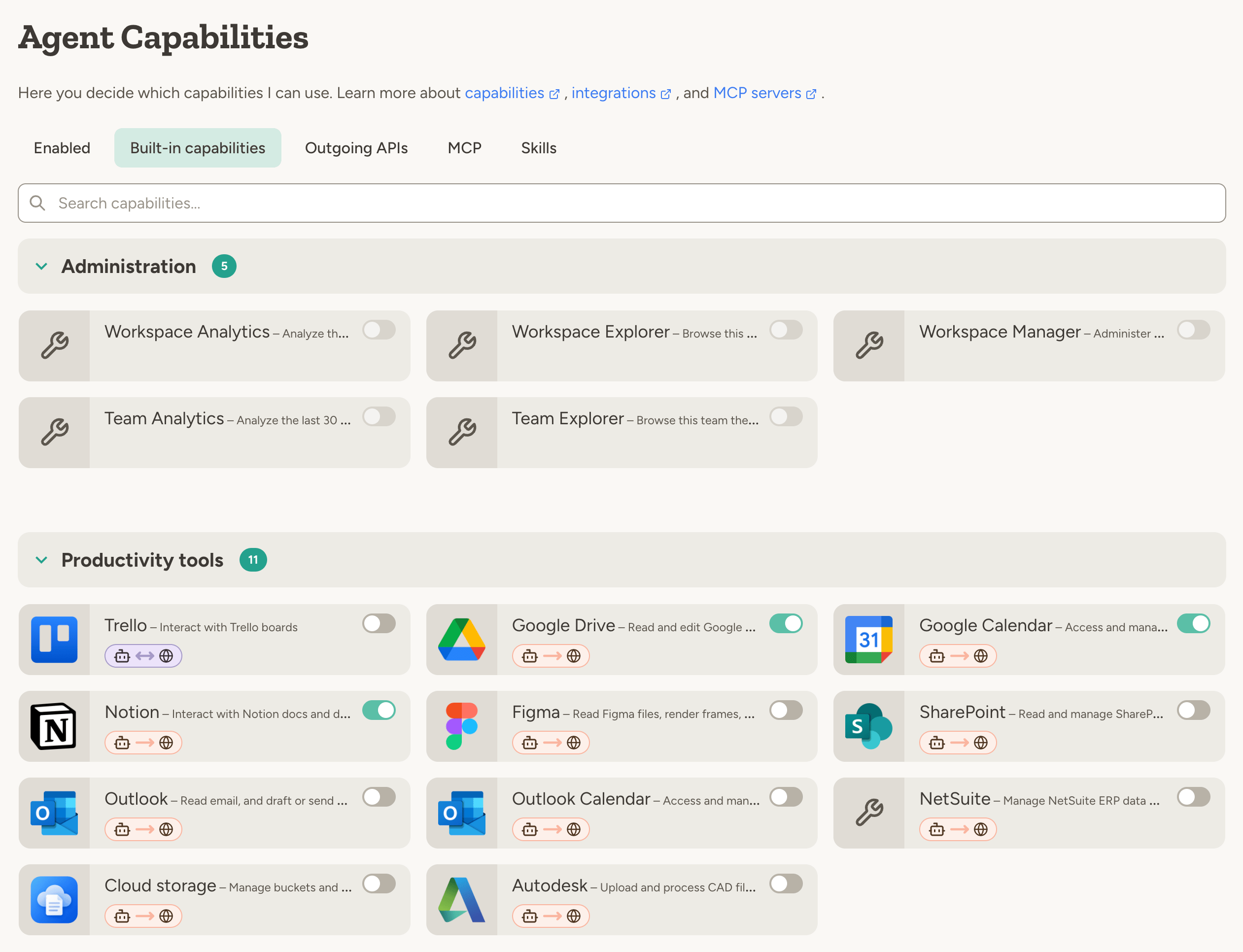
To browse available options, use the tabs on the agent’s capabilities page: Built-in capabilities for platform features and integrations, Outbound APIs for custom external APIs, MCP for custom MCP servers (if enabled in your workspace), and Skills for the step-by-step guides the agent can load on demand (see Skills).- Some capabilities represent Platform features - such as the ability to generate images, execute code, edit documents, etc.
- Other capabilities represent external integrations—such as Slack, Google Drive, HubSpot, and GitHub. You can also add your own integrations using MCP servers. Learn more about integrations in the integrations overview.
- Outbound (agent → world): the agent reaches out, for example Send Email, Google Drive, or an Outbound API.
- Inbound (agent ← world): outside systems or people reach the agent, for example Receive Email or the Inbound HTTP API.
- Two-way (agent ↔ world): both, for example Slack or Microsoft Teams.
Managing capabilities
Capabilities are an important part of managing the behavior of your agent.- If your agent has too few capabilities, it might not be able to do the task you asked it to do.
- If your agent has too many capabilities, or capabilities that it doesn’t need, it might get confused about when to use which capability.
- “Every morning, search for recent news about our competitors and add a summary to my research document.”
- “Research the top 10 AI startups in Europe and email me a summary.”
- “Every friday at 9am, generate a PDF report of this week’s sales data in google drive and email it to the team.”
- “When you receive an email with an invoice attached, extract the key details and add them to the invoice database.”
- “Monitor Twitter for mentions of our brand and post a daily summary to the #social-listening Slack channel.”
Capabilities your admin has blocked
If your workspace admin has disabled certain capabilities workspace-wide (or for your team, or for personal agents), they don’t disappear from the Built-in capabilities tab — they show up as greyed-out cards marked N/A, sorted below the capabilities you can use. Hover the label or click the card to see why it’s unavailable. Category badges on the tab show an available/total count when some capabilities in that category are blocked, so you can tell at a glance where restrictions apply. See Guardrails for how workspace-level capability controls work.Extra instructions from your admin
Workspace and team admins can attach extra instructions to a capability from the workspace Capabilities page. The text is added to the capability’s built-in description for every agent that has it enabled — useful for house rules like which Slack channels to prefer or what tone to use in outgoing email. Team instructions replace the workspace ones when both are set. This is guidance for the agent, not a hard limit. For controls the agent cannot talk its way around, see Guardrails.Who to ask for access
Many integrations need an account, a token or approval from whoever owns that system in your organization. Your admins can say who that is, and you see it in the capability’s panel when you set it up: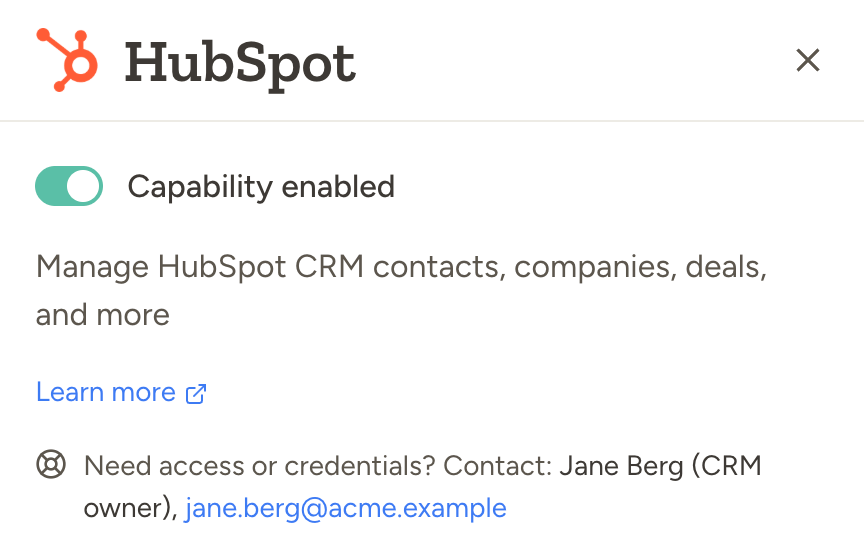
- Contact for integrations, under Capability defaults, applies to every integration that uses your own accounts, such as HubSpot, Slack or Notion.
- The Contact field in a capability’s panel replaces it for that capability, for example the CRM owner for HubSpot. Team admins can set their own contact for a capability, which replaces the workspace one for the team’s agents.
Settings your admin manages
For some capabilities, workspace and team admins can also set a default or a lock for individual settings — for example keeping Update Instructions chat-only, turning off sending in Outlook, or requiring approval for every email an agent sends.- A default is applied when the capability is enabled on an agent (and to new agents). You can still change it afterwards.
- A locked setting is enforced on every agent in the workspace or team. It shows as disabled on the agent’s capability panel, with a note saying which admin level manages it, and cannot be changed per agent.
Capabilities new agents start with
Abundly turns on a basic set of capabilities for every new agent. Workspace and team admins can change that set per capability under New agents in the capability’s panel on the Capabilities page: follow the default, or turn it on or off for new agents. A team follows the workspace choice unless it sets its own. This only applies to agents created from scratch, and only while the capability is available. Existing agents are not changed, and agents copied from another agent keep their own capabilities.On-demand capabilities
You don’t need to configure all capabilities upfront. If you ask the agent to do something that requires a capability that isn’t enabled, it will automatically request it by showing a capability card in the conversation.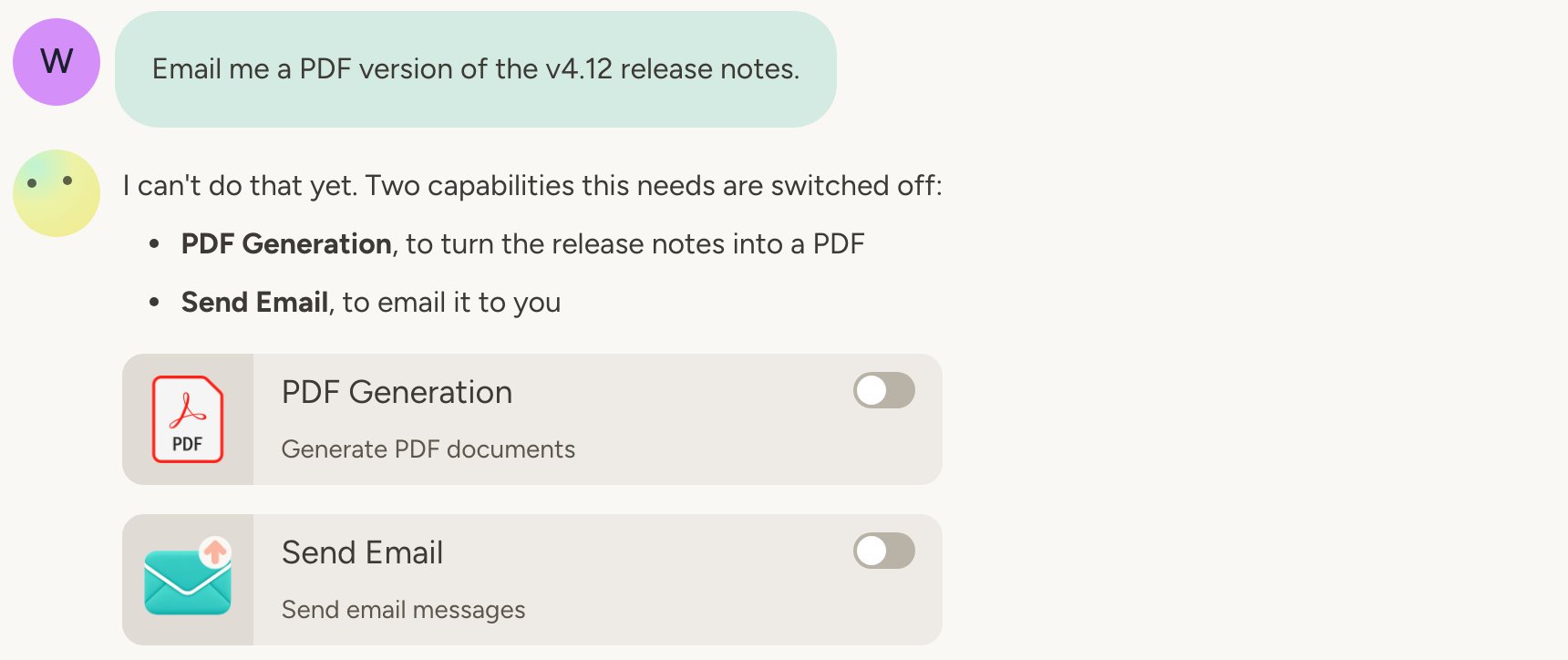
FAQ
What's the difference between capabilities, tools, and MCP servers?
What's the difference between capabilities, tools, and MCP servers?
- A tool is a lower-level technical function exposed to an LLM. For example,
postSlackMessageis a tool that posts a message to a Slack channel. - A capability groups related tools together. The Slack capability includes posting messages, listing channels, reading threads, etc. Capabilities are toggled on/off by the user and may require authentication. - An MCP server is an external service that exposes tools to an LLM. Adding an MCP server to your agent creates a capability for those tools. See MCP Servers.