

- Extend beyond built-in integrations — Add capabilities that aren’t provided by Abundly yet
- Use community servers — Tap into the growing ecosystem of MCP servers
- Connect internal systems — Build an MCP server for your in-house systems (CRM, inventory, custom database, etc.) and make them available to your agents
- No waiting — Add new integrations yourself, without waiting for platform updates
Learn more about the Model Context Protocol (MCP) in the official MCP documentation.
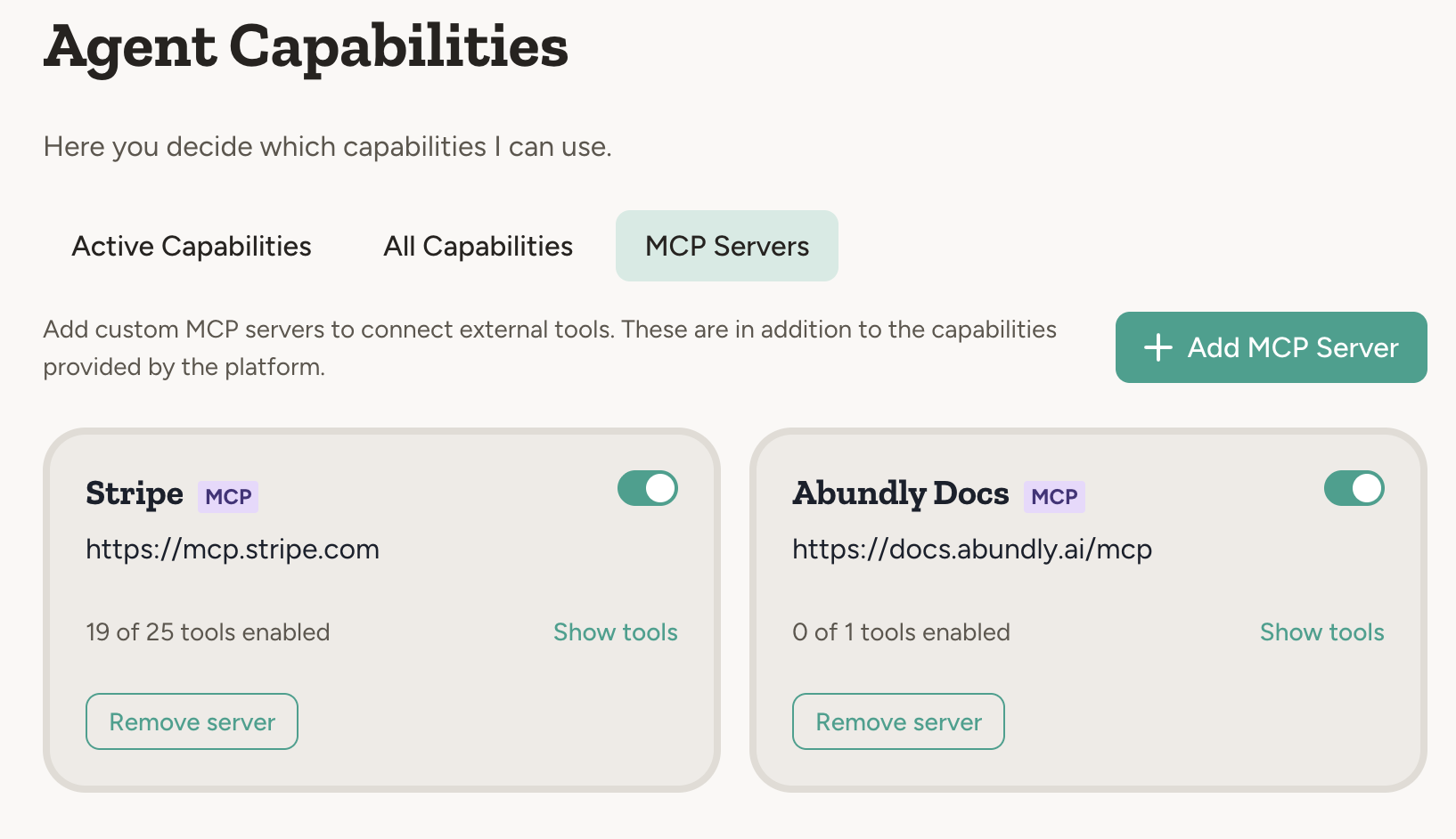
How to add an MCP server
You can add an MCP server from the built-in library or by entering a URL manually.From the library
Go to the MCP Servers tab in your agent’s capabilities. The “Add a server” section shows popular MCP servers you can add with one click — Atlassian, Stripe, Sentry, Linear, and more. Click any of them to add it to your agent, then authenticate if needed.By URL
1
Find an MCP server
Get the URL of an MCP server — from the community, a vendor, or one you’ve built yourself.
2
Add to your agent
Click Connect by URL in the MCP Servers tab and paste the server URL. It must be an
https:// address on the standard port — the platform refuses to send credentials over an unencrypted connection. The server must also be reachable on the public internet: addresses on private or internal networks are refused. A redirect to a different host is refused too, so if a server has moved, add it again with the new address the error message names.3
Authenticate if needed
The platform automatically detects if authentication is required. Choose OAuth (recommended) or API token. Workspaces with workload identity also get a Workload identity tab, where the agent authenticates as itself through a workspace audience and nothing is stored for the server. A Microsoft Entra audience can be chosen by workspace admins only.When the server publishes its OAuth settings and either registers clients itself or accepts a client metadata document (Tableau, for example), the dialog reads them and there is nothing to fill in. If it publishes them but does neither, the dialog asks for your own Client ID and Client Secret. If nothing can be read, you enter the authorization URL and Client ID yourself.For non-standard setups, expand the Advanced section on the OAuth tab. Tick Customize authorization or token endpoints to change the endpoints (for servers like NetSuite where the token endpoint lives on a different host), tick Customize client credentials to use your own OAuth app instead of an automatically registered client, and set the scopes as a space- or comma-separated list. Sections you leave unticked, or hide again, are not sent.The endpoints, scopes, and client ID you enter are kept with the server. When a provider makes you sign in again (NetSuite, for example, expires its refresh tokens after seven days), Reauthenticate reopens the dialog with them filled in, so you only repeat the sign-in.The Advanced section on the API token tab does the same job for token auth. By default the token is sent as
Authorization: Bearer <token>. For servers that expect a vendor header instead, such as BugSnag’s Bugsnag-Auth-Token, tick Customize token header, set the header name, and clear the value prefix so the raw token is sent. Tick Send extra headers to add fixed headers that go out with every request.4
Enable/disable tools
Once connected, the platform discovers available tools. Toggle individual tools on or off.
Microsoft Entra ID servers, such as Azure DevOps
Some vendors protect their MCP server with Microsoft Entra ID. Microsoft’s hosted Azure DevOps MCP Server athttps://mcp.dev.azure.com/{organization} is one. These servers publish their OAuth settings, so the dialog fills in the endpoints and the scope for you. What Entra never does is issue client credentials on the fly, so you bring an app registration of your own:
- Create an app registration in the Microsoft Entra admin center.
- Add the redirect URI: under Authentication, add
https://app.abundly.ai/api/mcp/oauth/callbackas a Web redirect URI. Enterprise customers on a dedicated deployment use their own app domain instead, in the formhttps://<your-tenant>.app.abundly.ai. Under Certificates & secrets, create a client secret and copy its value. - Grant the permission: under API permissions, add the delegated permission of the MCP server’s resource app and grant admin consent. For Azure DevOps that is Azure DevOps MCP (application ID
2a72489c-aab2-4b65-b93a-a91edccf33b8), which is a different resource app from Azure DevOps itself. - Connect in Abundly: add the server from the library or by URL, choose Continue with OAuth, and enter the Client ID and Client Secret under advanced config. Keep the prefilled scope, for Azure DevOps
https://mcp.dev.azure.com/.default offline_access. The library entry uses the URL without an organization, so the agent names the organization in each tool call; to pin one, add the server by URL ashttps://mcp.dev.azure.com/{organization}instead.
Entra scopes name their resource:
https://mcp.dev.azure.com/.default or 2a72489c-aab2-4b65-b93a-a91edccf33b8/Ado.Mcp.Tools. A bare name such as Ado.Mcp.Tools is taken as a Microsoft Graph permission and rejected. The Azure DevOps toolset names (wit, repos, pipelines) are not scopes.organizations in both URLs with your tenant ID.
Troubleshooting sign-in errors
A connection attempt fails in one of three places, and the error message tells you which:- ”… refused to register this platform as an OAuth client” — the provider only lets apps it has approved connect automatically, and the message includes its reason. Ask the provider to allow
https://app.abundly.ai/api/mcp/oauth/callback(on a dedicated deployment,https://<your-tenant>.app.abundly.ai/api/mcp/oauth/callback), or create an OAuth app in the provider’s admin console with that redirect URI and enter its Client ID under advanced config. - “The sign-in provider rejected the request” — the provider refused the request before or during sign-in. Your client secret and token endpoint were never used, so look at the scope, the API permissions, and the redirect URI. The provider’s own explanation follows in the message.
- “Token exchange failed” — sign-in succeeded, but exchanging the sign-in code for a token did not. Check the client secret and the token endpoint URL.
Security
Be careful with third-party MCP servers. Only add servers from sources you trust. An MCP server has access to perform actions on your behalf, so verify the source before connecting — especially for servers that aren’t from official vendors or well-known open source projects.Workspace control
Workspace admins can allow or disallow MCP servers for the whole workspace — or per team — using the Allow connecting MCP servers setting under capability settings. When disallowed, users can’t add MCP servers, and servers already added to agents are disabled: their tools become unavailable to the agent until MCP servers are allowed again.MCP credentials are encrypted using hybrid AES+RSA encryption. OAuth tokens are never exposed to the AI model directly — the platform handles authentication.