

Workload identity is an enterprise feature. Contact support@abundly.ai to enable it for your workspace.
The agent’s identity
Workspace admins find the values your cloud needs under Workspace → Workload identity:- Issuer URL — the URL your cloud trusts, for example
https://app.abundly.ai/oidc. It’s the same for every agent in your deployment. - Workspace ID — used to restrict the trust to your workspace.
workspace:<workspace id>:team:<team id>:agent:<agent id> (agents without a team have team:none). When a capability is set to workload identity, its settings show the exact principals to grant for that agent, its team and the whole workspace.
Each token also carries these claims. Every claim is always present, empty when it doesn’t apply:
Tokens are minted per run, so a token issued for one user or run is never reused for another.
For example, the decoded token of an agent in a team, working in a chat started by a signed-in user, used for Google Cloud:
"trigger": "scheduler", a run_id, and empty chat_id, user_id and user_email.
Audiences
Every system that trusts your agents gets its own audience under Workspace → Workload identity. The audience goes into the token, so a token meant for one system can’t be used at another. When you add an audience, its type is detected from the value, and the type decides what agents do with the token:
A token for a Google Cloud or Microsoft Entra audience can be exchanged for access by whoever holds it, so it’s only ever sent to that cloud’s token service. That’s why an audience that looks like a Google one but isn’t valid (for example with the project ID instead of the project number) can’t be saved, and why an audience’s type can’t change once it’s saved: to change it, delete the audience and add it again.
Set up Google Cloud
1
Enable the APIs
In your Google Cloud project, enable the IAM Service Account Credentials API and the Security Token Service API, plus the APIs the capability uses (Drive, Docs and Sheets for Google Drive; BigQuery for BigQuery).
2
Create a workload identity pool that trusts Abundly
Replace the issuer URL and In Google Cloud, a pool trusts an external issuer through what Google calls a provider. Open it under IAM & Admin → Workload Identity Federation and copy its Default audience (
YOUR_WORKSPACE_ID with the values from Workspace → Workload identity.https://iam.googleapis.com/projects/<project number>/locations/global/workloadIdentityPools/abundly/providers/abundly). That’s the value you paste into Abundly.3
Grant access
Choose who gets access with the BigQuery can grant roles to the agent directly, without a service account:Add
--member value:Google Drive needs a service account, because Drive files are shared with an email address. Create one, let the agent act as it, then share files or folders with the service account’s email:
roles/bigquery.dataViewer and roles/bigquery.metadataViewer the same way, on the project or on specific datasets. Queries run, and are billed, in a project where the agent has BigQuery Job User.4
Connect your workspace
In Workspace → Workload identity, add the Default audience under Audiences, with a label such as “Google Cloud”. Each relying party that trusts your agents gets its own audience in this list, so tokens meant for one can’t be used at another.
5
Configure the capability
- BigQuery: set Authentication to Workload identity and save. If the workspace has more than one Google Cloud audience, pick which one to use. There’s no project to configure: the agent works in the projects you granted it access to. To point agents at the right projects and datasets, add a note to the capability in the workspace or team settings, or keep a data guide as a workspace document.
- Google Drive: choose Workload identity mode, pick the audience if there are several, enter the service account email, save, then click Test connection.
Set up Microsoft Entra
With Microsoft Entra Agent ID, each agent gets an agent identity in your directory: an object like a service account that you assign app roles to, for Microsoft Graph or an API of your own such as an MCP server. Agent identities are created under an agent identity blueprint, an app registration that represents the Abundly platform and trusts this workspace’s issuer. Entra verifies that the platform is calling; which agent it becomes is decided by the agent identity a workspace admin maps to the agent in Abundly. Google, by contrast, derives the agent from the token itself. Four things in Entra take part, and the steps below create them in this order:
Before you start: creating the blueprint and its federated credential takes an Entra role that can register applications, such as Application Administrator. Granting Microsoft Graph application permissions such as
Sites.Selected with admin consent takes Privileged Role Administrator or Global Administrator. Microsoft Entra Agent ID must be available in your directory; the Agent ID overview has its current availability and licensing.
1
Create the blueprint and trust Abundly
In the Microsoft Entra admin center, create an agent identity blueprint. It is an app registration, so it has the usual pages: note its Application (client) ID on the Overview page.Open the blueprint’s Certificates & secrets → Federated credentials, add a credential for the scenario Other issuer and fill in the values from Workspace → Workload identity:
- Issuer: the Issuer URL, for example
https://app.abundly.ai/oidc - Subject identifier: the value shown as Subject for Microsoft Entra,
workspace:<your workspace ID> - Audience:
api://AzureADTokenExchange
2
Connect your workspace
In Workspace → Workload identity, click Add audience, choose the type Microsoft Entra and enter your directory (tenant) ID and the blueprint’s application (client) ID; the audience value 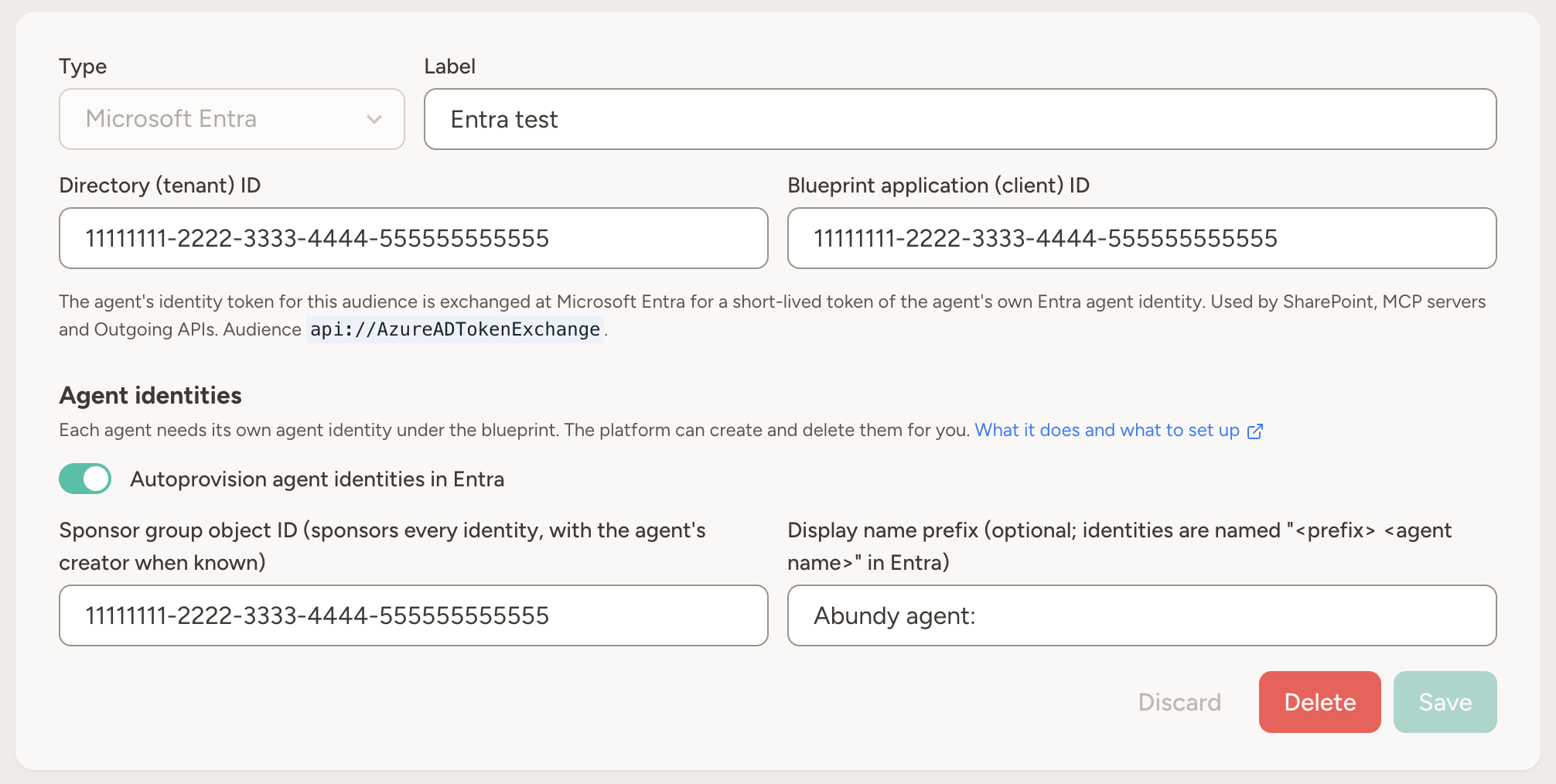
api://AzureADTokenExchange is filled in for you. Give it a label such as “Microsoft Entra”.3
Create an agent identity per agent
Each agent needs its own agent identity under the blueprint. Either let the platform create them, see Automatic agent identities below, or create one per agent yourself and paste its application (client) ID on the agent’s Settings page under Entra agent identities. Until it is set, capabilities using the Entra audience fail with a message saying so.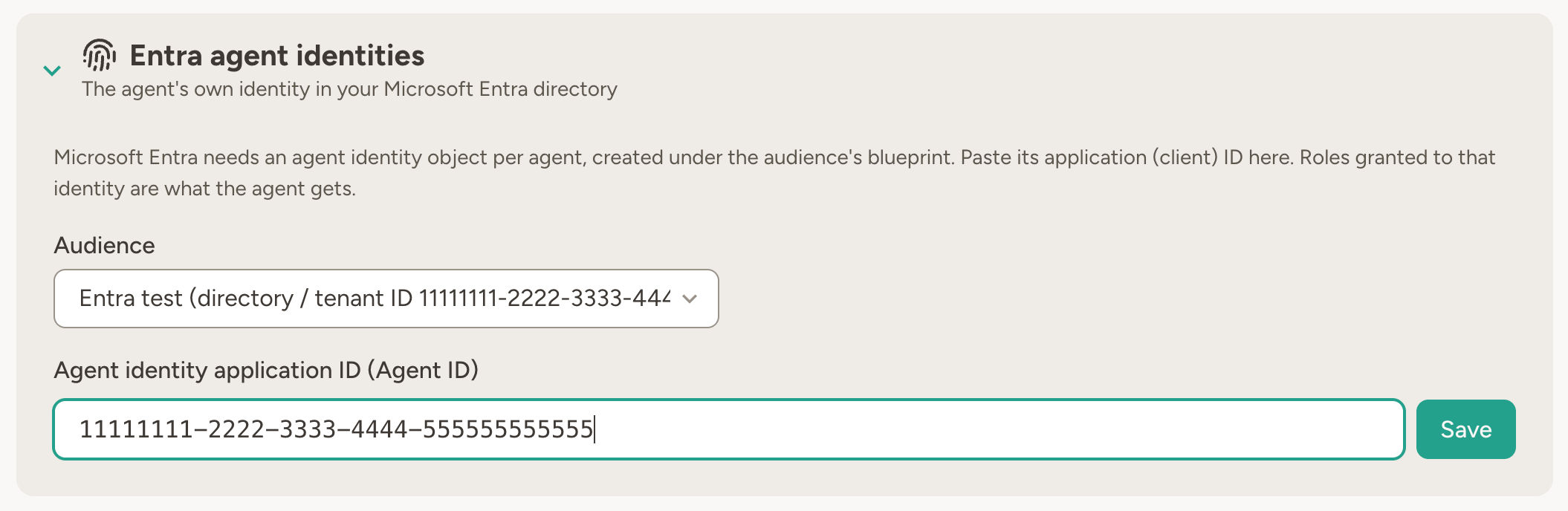
4
Grant the identity access
A new agent identity can do nothing. It is not an app registration, so it has no API permissions page and no Grant admin consent button of its own. Permissions reach it in one of two ways:
- Once, for every agent: add the permission to the blueprint, grant admin consent there, and mark it as inheritable. Every agent identity under the blueprint then holds it. Simplest when all your agents need the same baseline.
- Per agent: create an app role assignment on the identity through Microsoft Graph, or with Microsoft Graph PowerShell (
New-MgServicePrincipalAppRoleAssignment). It names three things: the agent identity as the principal, the resource’s service principal (Microsoft Graph, or your API) and the role’s ID. There is no admin center page for this.
- Microsoft Graph: the Graph application permissions the agent needs, for example
User.Read.Allto look up people. - Your own API or MCP server: on the API’s app registration, set an Application ID URI (
api://…, this is the scope you enter in Abundly) and define an app role whose allowed member type is Applications. Then assign that role to the agent identity as above.
5
Configure the capability
-
MCP server: when connecting, choose the Workload identity tab, pick the Entra audience and enter the scope, the MCP server’s app ID URI with
/.default, for exampleapi://mcp-gateway/.default. Choosing an Entra audience here takes a workspace admin, since it decides where the agent’s identity token is sent. Your server validates the token like any Entra application token: the issuer ishttps://login.microsoftonline.com/<directory ID>/v2.0, the audience is your API’s app ID URI or application ID, as Entra issues it, and therolesclaim lists the app roles assigned to the identity. The caller’s application ID is inazp: that is the agent identity, so you can tell agents apart.
Automatic agent identities
Turn on Autoprovision agent identities in Entra on the Entra audience under Workspace → Workload identity, and the platform manages the agent identities for you:- Created when an agent is created, under the audience’s blueprint, named after the agent, with an optional prefix such as “Abundly:” so your agents are easy to spot in the directory. If Entra can’t be reached at that moment, the identity is created on the agent’s first Entra call, or with the Sync button on the agent’s Settings page.
- Renamed when the agent is renamed.
- Deleted when the agent is permanently deleted, which is after the grace period that follows a delete. Entra keeps a deleted identity restorable for 30 days.
- Never touched when a workspace admin pasted it by hand.
- A sponsor group: every agent identity must have an accountable sponsor. Enter the object ID of a Microsoft 365 or dynamic membership group; security groups and role-assignable groups aren’t accepted. The user who created the agent is added as a sponsor too, when they signed in to Abundly with a Microsoft account in that directory.
- The blueprint’s
AgentIdentity.CreateAsManagerpermission, which a blueprint holds by default. It lets the blueprint create and delete agent identities under itself and nothing else. - Access for the identities: assign app roles per agent, or grant a baseline to all of them through the blueprint’s inheritable permissions.
Check that it works
In the Microsoft Entra admin center, the identities are listed under Agent ID, with the display name you chose, so a prefix such as “Abundly:” makes them easy to find. The quickest end-to-end check of the trust is the Sync button on an agent’s Settings page when autoprovisioning is on: it creates the identity through the blueprint’s federated credential, and shows Entra’s own message if the credential or the blueprint’s permission is wrong. The MCP server connect dialog exercises the full token exchange for one agent, including the roles you assigned.If it doesn’t work
Use it with an Outgoing API
Add a keyhole of type Workload identity (keyless) to the Outgoing API and pick an audience. There’s no key to choose when you enable the API on an agent: every agent authenticates as itself. The API’s settings on each agent show what to grant or check for that agent, its team and the whole workspace.- Google APIs: pick a Google Cloud audience. The API’s endpoints must be on
googleapis.com: the agent sends Google’s access token, which is only ever sent to Google. The scope defaults tohttps://www.googleapis.com/auth/cloud-platform. Enter a service account to impersonate, or leave it empty and grant roles to the agent’s principal directly, as in step 3 above. - Microsoft Graph or an Entra-protected API: pick a Microsoft Entra audience and enter the scope, for example
https://graph.microsoft.com/.defaultorapi://<app id>/.default. A token for anhttps://resource is only ever sent to that host. - Your own API or gateway: add a Direct audience, for example your API’s URL, and pick it. The agent sends its token in the
Authorization: Bearerheader. Your API should verify:- the signature, with the keys published at
<issuer URL>/.well-known/openid-configuration issis your issuer URL,audis the audience you added, and the token hasn’t expiredworkspace_idis your workspace ID, plus any team or agent you want to allow
- the signature, with the keys published at
Use it with an MCP server
When connecting an MCP server, the authentication dialog offers a Workload identity tab next to OAuth and API token. Pick an audience: a Direct audience sends the agent’s own token for your server to verify, a Microsoft Entra audience sends an Entra token for the scope you enter, and a Google Cloud audience works for servers ongoogleapis.com. Nothing is stored for the server; a token is minted for every run. A Microsoft Entra audience can be chosen by workspace admins only, because it decides where the agent’s identity token is sent; Google Cloud and Direct audiences take Edit access to the agent.
Good to know
- An agent’s subject includes its team, so moving an agent to another team changes its identity. Team-based grants follow the agent automatically; grants on the old subject stop working. Entra agent identities are mapped per agent and are unaffected.
- Tokens are valid for five minutes. The platform sends a Google Cloud or Microsoft Entra audience’s token only to that cloud’s token service, and a Direct audience’s token only to the MCP server or Outgoing API that uses it. They are never shown to the agent’s model.
- For Microsoft Entra, the token’s
subisworkspace:<workspace ID>rather than the agent’s subject, because Entra’s federated credential matches the subject exactly. The other claims are unchanged.
FAQ
What can Abundly do in my Entra directory?
What can Abundly do in my Entra directory?
Nothing, until you turn on autoprovisioning. With it on, the platform acts as the blueprint, whose
AgentIdentity.CreateAsManager permission allows exactly one thing: creating, renaming and deleting agent identities under that blueprint. It can’t read your directory, assign permissions or touch any other object. What an agent can reach is what you assign to its identity.Can one blueprint serve several Abundly workspaces?
Can one blueprint serve several Abundly workspaces?
Entra allows it, with one federated credential per workspace subject, but don’t: any credential on a blueprint can request tokens for any agent identity under it, so workspaces sharing a blueprint could act as each other’s agents. Give each workspace its own blueprint.
Who decides which identity an agent uses, and where its token goes?
Who decides which identity an agent uses, and where its token goes?
Workspace admins map the agent identity to the agent on its Settings page, and only they can connect an MCP server or an Outgoing API with a Microsoft Entra audience, because that decides where the agent identity’s token is sent. Google Cloud and Direct audiences stay with whoever may edit the agent or API: their tokens are only good at Google or at the audience itself. A token for an
https:// resource such as Microsoft Graph only ever goes to that host, whoever configured it.Is there anything to rotate or anything that could leak?
Is there anything to rotate or anything that could leak?
No secret exists. Abundly keeps the directory ID, the blueprint’s application ID and each agent’s identity ID, which are public identifiers, and Entra holds the trust in the federated credential. Tokens are minted per run, are short-lived and are never shown to the agent’s model.