

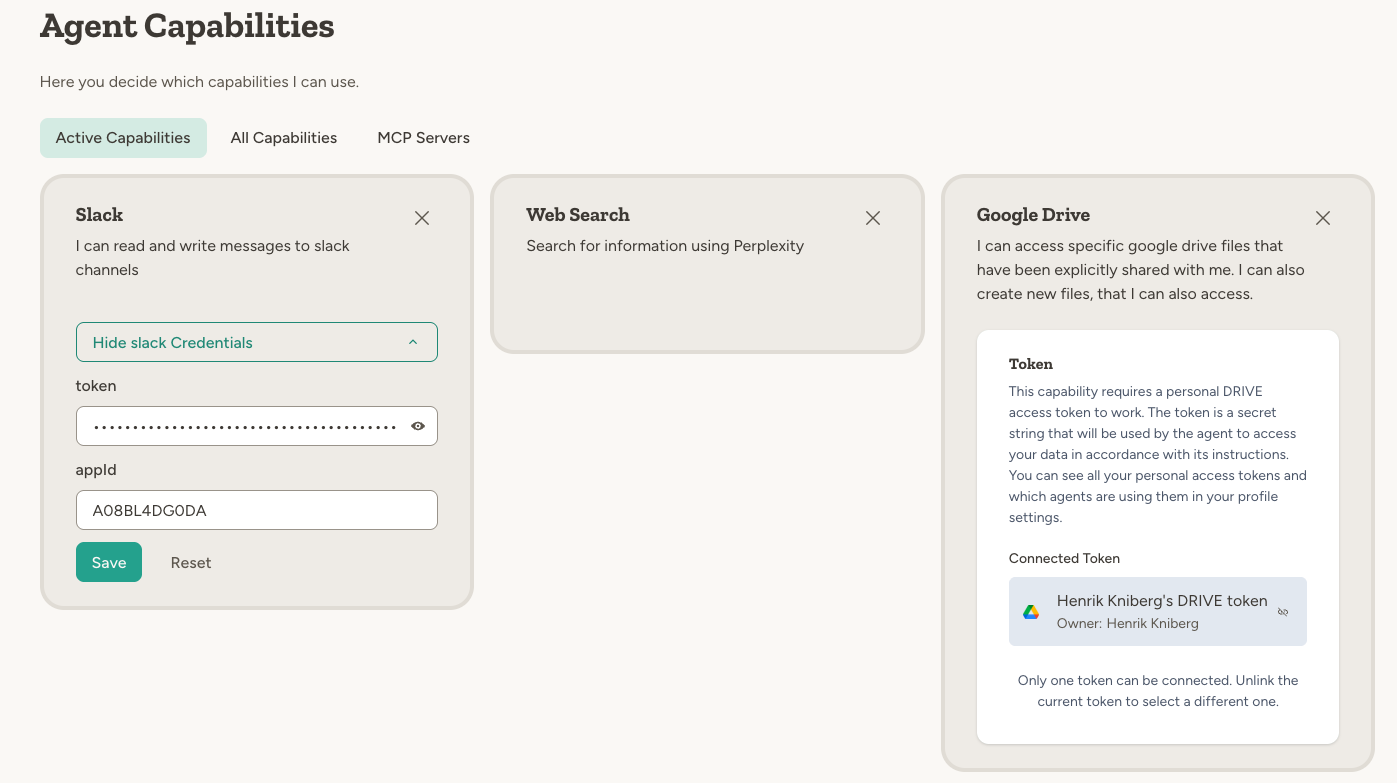
Three credential patterns
Platform-provided
Some capabilities work out of the box with no credentials required. The platform uses its own accounts and you pay through credits. Example: Web Search uses Perplexity under the hood. You just enable the capability and start using it—credits are deducted for usage.User-entered credentials
For services where you bring your own account, you provide an API key or token from that service. Many capabilities — for example Slack, GitHub, Notion, HubSpot, Trello, Twitter/X Post, Figma, Snowflake, and Salesforce — keep it as a workspace Secret (Workspace → Secrets). On the capability card, you pick a secret from the dropdown, or click Add Secret to create one with a field for each key. Keys that belong together, such as a Slack bot token and signing secret, live in one secret, so you never have to match up a pair. Example: Slack needs a bot token and signing secret from your Slack app. You create a Slack app, add both values as one Slack secret from the capability card, and enter the app ID on the card. Keeping keys in workspace secrets means:- One secret can serve many agents, and you rotate it in one place.
- You decide which agents and teams may use it.
- A secret can be limited to production or sandbox agents and carry a separate sandbox value, such as a test API key, when your workspace uses agent lifecycle phases.
- Turning a capability off doesn’t lose the key. The secret stays in the workspace, so turning the capability back on only needs the secret selected again.
Personal tokens (OAuth)
For services that access your personal data, you authorize via OAuth. This creates a personal token tied to your account. Example: Google Drive requires access to your Google account. You click “Connect” and authorize through Google’s OAuth flow. The resulting token is yours—other users who interact with the agent can trigger actions, but only within the scope you authorized.Keys stored directly on an agent
Some capabilities, such as Slack, Trello, Notion, HubSpot, Twitter/X Post, and GitHub, used to take keys typed straight into the capability card. Those keys keep working and nothing changes automatically, but new keys can no longer be typed into these cards. The card shows the stored keys masked, with two options:- Save as workspace secret — Opens the secret form with the stored keys already filled in. Name the secret and choose which agents or teams can use it; the keys are copied into one secret, so there is nothing to re-enter. The card then shows the new secret as selected.
- Select a secret instead — Select or add a different secret, then click Save. Until then, the agent keeps using the stored keys.
Managing personal tokens
Personal tokens are managed in your profile settings under Personal Tokens. You can see all your connected services, add new tokens, rename tokens, review which agents use each token, and revoke access. OAuth tokens refresh automatically in normal use. For expired tokens, you can manually refresh when available. For Google Drive, if Google has revoked access or refresh no longer works, you can reconnect the existing token in place so agents keep their file access. See Google Drive.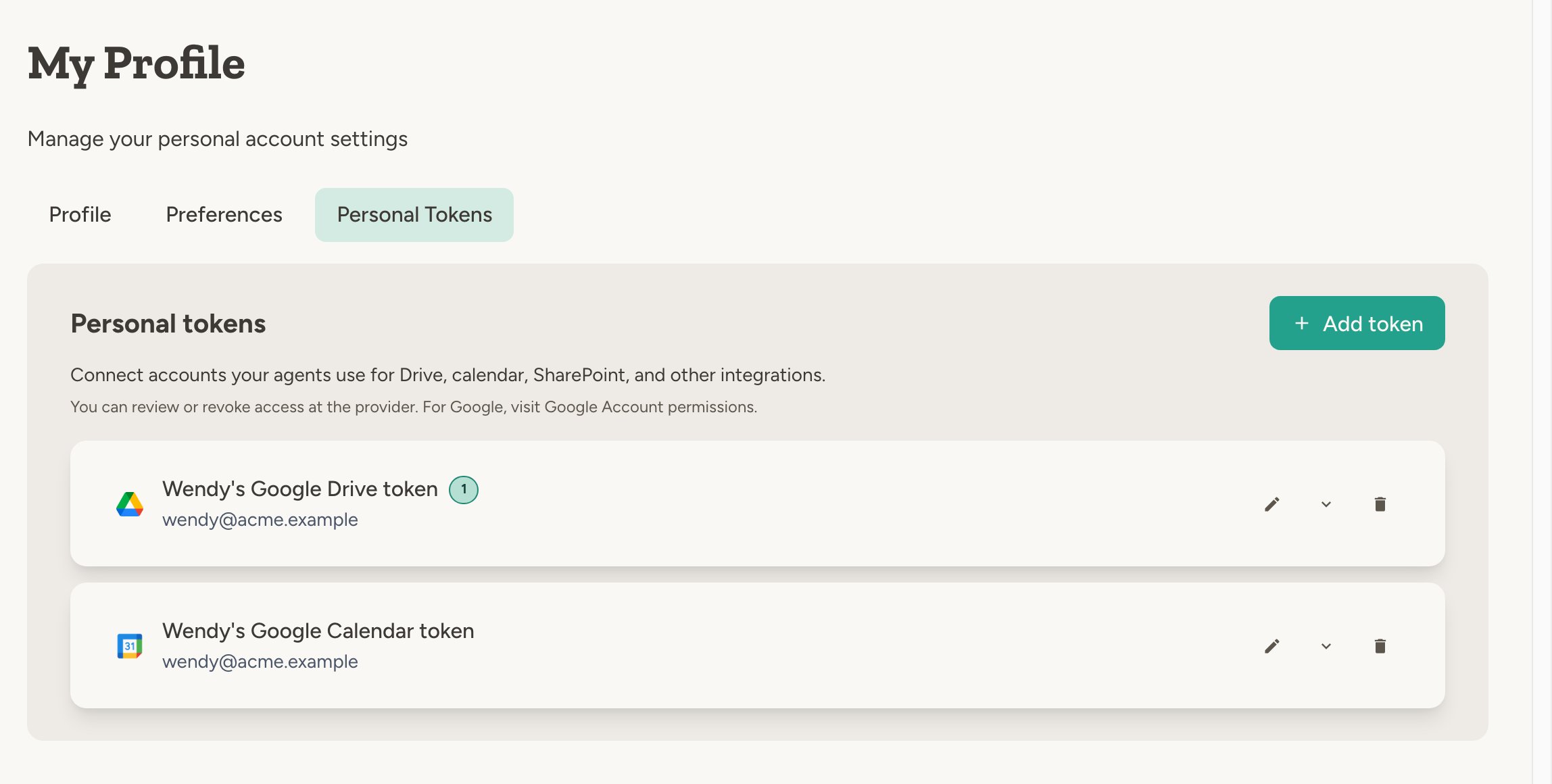
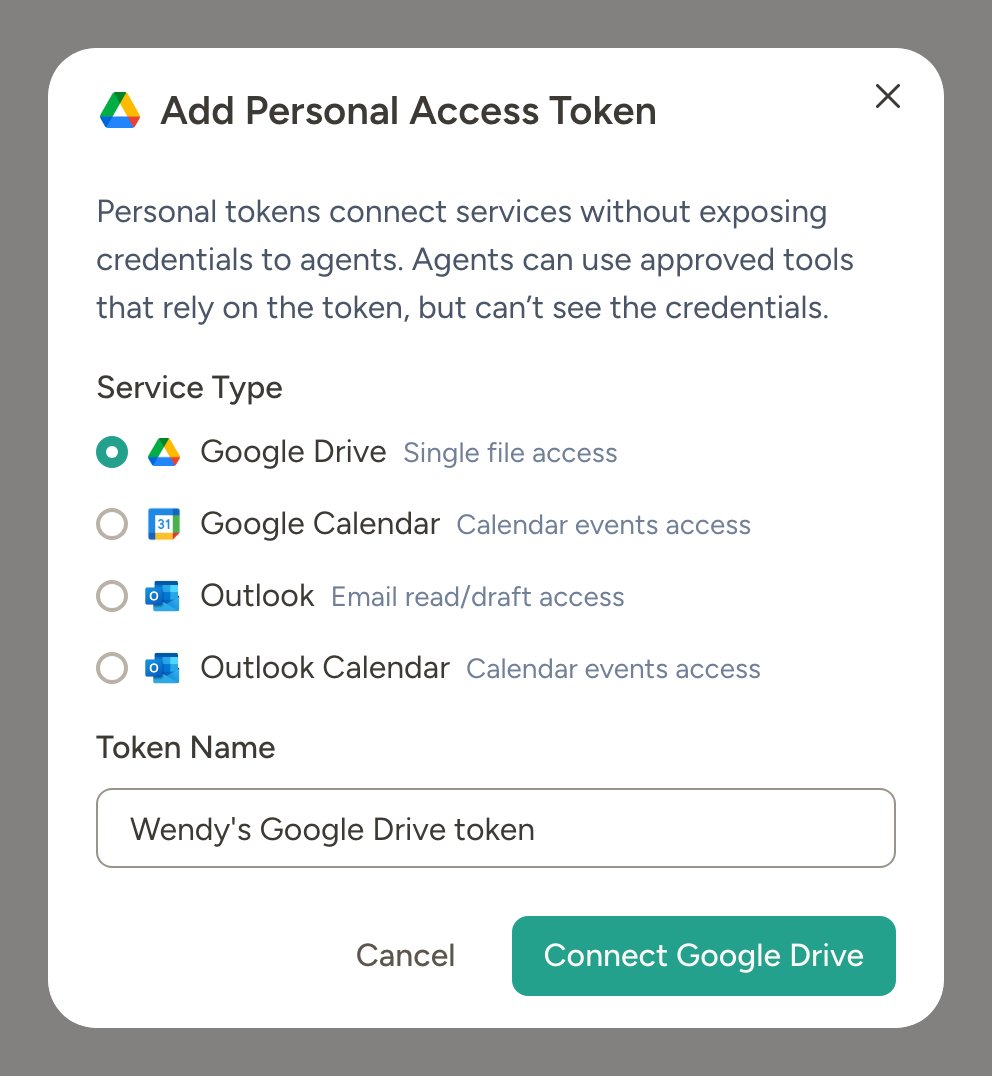
- Google Drive
- Google Calendar
- Gmail
- SharePoint
- Outlook
- Outlook Calendar
Multiple accounts on one agent
For Gmail, an agent can connect more than one account—for example a personal inbox and a work inbox managed by the same assistant. Connect each account as its own personal token, then refer to the accounts by email address in the agent’s instructions (e.g. “work mail is anna@company.com”).How credentials are secured
The LLM never sees your credentials. It only knows which capabilities are available (e.g., “Gmail - Read and send emails”). When an agent calls an external API, the platform injects authentication after the LLM has generated the request. This prevents credentials from leaking through model outputs or logs.
Best practices
Use least privilege. When creating API keys or OAuth grants, give only the permissions the agent actually needs. A read-only key is safer than one with write access. Rotate after membership changes. When someone leaves your workspace, rotate any credentials they might have had access to through agents. Revoke unused tokens. In your Personal Tokens page, remove tokens for services you no longer use. Never put credentials in instructions. Credentials in agent instructions would be visible to anyone with access to the agent and potentially exposed in logs. Always use the credential system.If a credential is compromised
If you suspect a credential has been compromised:- Revoke immediately — For personal tokens, go to your Personal Tokens page and disconnect the service. For user-entered credentials, regenerate the API key at the source (e.g., Slack, GitHub).
- Update agents — For a workspace secret, enter the new key once under Workspace → Secrets and every agent using that secret picks it up. For other credentials, agents lose access until you reconnect them with new credentials.
- Review activity — Check the activity log for any suspicious actions taken before the credential was revoked.
Learn more
Slack
Set up a Slack app and connect it to your agent
Google Drive
Connect your Google account and share files
Integrations
All available integrations and how to configure them