

How to enable
Go to Settings → Capabilities and enable Slack. Then pick a Slack mode, select a workspace secret with your bot token and signing secret, enter your Slack app ID, and point your Slack app’s Event Subscriptions URL at the webhook Abundly shows you. See the step-by-step guide below.Slack modes
The Slack capability has two modes, selectable on the capability card. You can switch modes at any time under Settings → Capabilities → Slack.Chat mode (default)
The natural choice for most agents. Slack threads and DMs behave as persistent agent chats — the same abstraction as the portal chat. People start a conversation by @mentioning the agent in a channel or sending it a DM, and then keep replying in the same thread without having to @mention every time. Chat mode already supports everything most agents need on Slack, including:- Posting proactively to any channel the bot has been invited to
- Sending DMs, including group DMs to several people at once
- Adding reactions
- Running all Slack tools (search, user lookup, etc.)
Trigger mode
Each Slack event your app subscribes to is forwarded to the agent as a raw trigger payload for it to interpret with your instructions. There is no automatic reply; the agent only responds or takes action if your instructions call for it. Trigger mode is intended for ambient monitoring or custom automations on specific event types (for example: “whenever someone reacts with 🚨 in #alerts, file an incident”). It is not the right mode for normal interactive Slack use.Example use cases
- “Post a daily standup summary to #engineering every morning”
- “Whenever a new potential customer is mentioned on the #sales channel, research how the customer fits our ideal profile, and add relevant info to the slack thread”
- “Notify #alerts when you are unable to solve a support ticket”
- “When a support request needs follow-up, add an :eyes: reaction so the team sees it’s being handled”
- “When a teammate shares a design mockup in a Slack thread, summarize the feedback and save the file as an agent document for follow-up”
How to connect to your Slack workspace
1
Create a Slack app from the manifest
Abundly generates an app manifest tailored to your agent. It includes the webhook URL, OAuth scopes, and the event subscriptions Slack needs for threads, DMs, and group DMs.
- In Abundly, go to Settings → Capabilities, enable Slack, and copy the App Manifest.
- Visit api.slack.com/apps and click Create New App → From a manifest.
- Select your workspace, paste the manifest, then click Next and Create.
Manifest template
2
Install the app and copy your credentials
After creating the app:
- Copy the App ID from the Basic Information page.
- On the same page, under App Credentials, click Show next to Signing Secret and copy it.
- Go to Install App in the left sidebar and click Install to Workspace, then authorize the app.
- Copy the Bot User OAuth Token from the OAuth & Permissions page.
3
Configure in Abundly
Back in Settings → Capabilities → Slack, enter the App ID. Under Bot token and signing secret, click Add Secret, paste the Bot User OAuth Token and the Signing Secret, and give the secret a name. The new secret is selected automatically. If a Slack secret for this app already exists, pick it from the dropdown instead.Both values live in one workspace secret, so they always stay together and you can rotate them in one place under Workspace → Secrets. Click Test connection to confirm Abundly can reach your workspace. It also warns if the bot token and App ID come from different Slack apps, or if the app is missing scopes from the manifest.The signing secret lets Abundly confirm that incoming events genuinely come from Slack. Without it, anyone who knows your agent’s webhook URL could send it fabricated messages, so every Slack secret includes one. If the selected secret is deleted or no longer available to the agent, Abundly rejects the agent’s Slack events.Already set up? Keys typed into the Slack card before it used workspace secrets keep working and show masked on the card. Click Save as workspace secret to copy them into a new secret, with nothing to re-enter. Agents connected before signing secrets were required have no signing secret to move: their events stay unverified until you select a complete Slack secret. See keys stored directly on an agent.
4
Verify the Event Subscriptions URL in Slack
Slack does not verify the Request URL when you paste the manifest — it just saves it. You have to trigger the verification yourself, once, before any Slack events will reach your agent.
- Go back to your app at api.slack.com/apps and open Event Subscriptions in the left sidebar.
- The Request URL is already filled in from the manifest, but you’ll see a banner saying the URL isn’t verified. Click Click here to verify (or Retry).
- Slack sends a test request to Abundly and the banner should change to Verified ✓.
- Click Save Changes at the bottom of the page.
5
Invite to channels
In each Slack channel where you want the agent to work, type
/invite @YourAgentName.How conversations work in Chat mode
With the default manifest and Chat mode, the agent listens broadly but replies selectively:- @mentions in a channel start a new chat — the agent replies in the thread with full context.
- DMs and group DMs start (or continue) a chat — the agent replies naturally.
- Follow-up thread replies in a thread the agent already joined continue the same chat, so you don’t need to @mention on every message.
- Replies to agent-initiated threads — When the agent posts a top-level message in a channel (e.g. a scheduled update or proactive notification), replies to that thread also continue the conversation without needing @mention.
- All other messages are ignored silently, so normal channel chatter doesn’t spam the agent.
- You can tell an agent to leave a thread — say it’s no longer needed and it steps out, so it stops being woken by every following message. It says so in the thread before going quiet, and an @mention brings it straight back, caught up on what it missed. Agents are told not to leave on their own initiative: if one thinks it’s done, it asks or says so first. DMs and group DMs can’t be left, so an agent is always reachable there.
@Name in a reply or a message it posts, Slack shows it as a real mention of that person, as long as the name matches exactly one member of the Slack workspace.
These conversations show up in the sidebar alongside portal chats, and can be filtered using the chat filter pill (e.g. Hide remote chats). The agent has the same instructions, memory, and capabilities as it does in the portal — so handoffs between Slack and the portal are seamless.
Restricting channels
By default the agent can use any channel it has been invited to, so most workspaces don’t need to configure anything — you control access by choosing which channels to invite the agent to. If you want an explicit limit on top of that, open Capabilities → Slack and expand the Restrictions section.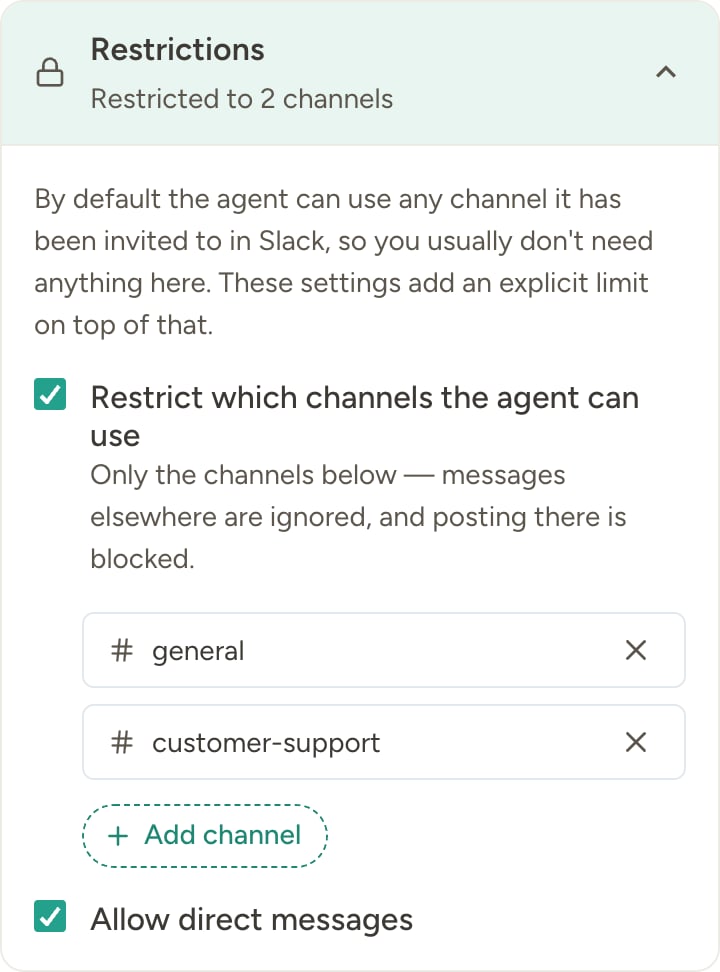
- Restrict which channels the agent can use — When enabled, the agent only acts in the listed channels: messages from other channels are ignored, and posting, reading history, or reacting there is blocked. Entries can be channel names (like
#general) or channel IDs (likeC0123ABCD). Names are simpler to read, but if a channel is renamed you need to update the list — channel IDs keep working through renames. - Allow direct messages — On by default. Turn it off and the agent ignores incoming DMs and group DMs and loses the ability to send them.
Customizing scopes and events
The manifest includes defaults that work for most use cases. You can customize them in your Slack app settings:
If you don’t want the agent to see all channel messages, remove
message.channels and message.groups and add app_mention instead — the agent will then only receive @mentions and DMs.
Accessing other Slack API methods
Beyond posting messages, reading channels, and reacting to messages, your agent can call any Slack Web API method — for example pinning messages, adding bookmarks, or listing user groups. Just ask in plain language:- “Pin the latest status update in #launch”
- “Add a bookmark to #onboarding linking to our new-hire checklist”
- “List all user groups in the workspace and tell me who’s in @design-team”
Working with file attachments
Your agent can both receive files from Slack and send files back into Slack messages and DMs. Incoming files. When people share files in Slack, your agent can download those attachments into agent documents and use them in multi-step workflows — for example, reading and summarizing an attached PDF, saving it to the document library, or forwarding it to another capability like Notion. Outgoing files. The agent can attach files when it posts to a channel or sends a DM. Supported sources include agent documents, images and other files produced by other capabilities, external HTTPS URLs, and raw SVG content (auto-converted to PNG). Multiple files can be attached to a single message. Example prompts:- “Generate a pie chart of last month’s sales by region and post it to #sales with a short summary”
- “When the weekly report PDF is ready, DM it to @Jane”
- “Take the diagram you just drew and share it in the thread”
files:read and files:write, which are needed for file workflows.
Deleting an agent
Deleting an agent in Abundly stops it responding in Slack immediately — no events reach the deleted agent from the moment you click Delete. A bot token kept in a workspace secret is not revoked, because the secret belongs to the workspace and other agents may use it. For a token stored directly on the agent, the token is revoked when the deletion becomes permanent after the grace period, so the bot user is deactivated and removed from any channels it had joined. The Slack app itself is not removed by Abundly — a Slack workspace admin has to uninstall it from the workspace’s app directory, or delete the app in api.slack.com/apps, to clear the bot icon from Slack’s UI.Troubleshooting
Agent isn't responding to messages
Agent isn't responding to messages
- Check the mode — In Settings → Capabilities → Slack, confirm you’re in Chat mode if you expect the agent to reply automatically. Trigger mode does not auto-reply unless your instructions say so.
- Check event subscriptions — In your Slack app settings, go to Event Subscriptions and ensure:
- The Request URL matches the webhook URL shown in Abundly.
- The “Enable Events” toggle is ON.
- The bot events from the manifest are present (
message.imfor DMs, plusmessage.channels/message.groupsfor public / private channel messages — orapp_mentionwithapp_mentions:readif you’ve narrowed to mention-only).
- Invite the agent — Type
/invite @YourAgentNamein the channel, or DM the bot directly. - Test the connection — Use the Test connection button in Abundly to confirm the bot token is valid and belongs to the same Slack app as the App ID.
- Check the signing secret — If the Slack card shows that events are failing signature verification, the signing secret in the agent’s Slack secret doesn’t match your Slack app’s. The Client Secret sits right next to it on the Basic Information page and looks identical, so make sure you copied the Signing Secret. Correct it with Edit Secret on the Slack card, then message the agent in Slack: only an event that passes verification clears the notice, since saving on its own can’t prove the new value is the right one.
- Check the Slack secret — If the selected Slack secret was deleted, or its access settings no longer include this agent, Abundly rejects the agent’s Slack events. Select a Slack secret the agent can use.
Agent replies only to @mentions, never to regular channel messages
Agent replies only to @mentions, never to regular channel messages
By default, the agent listens to all messages in channels it’s in, but only replies to @mentions, DMs, and follow-ups inside threads it’s already part of. That’s intentional — it keeps the agent from jumping into every conversation. To change this behavior, adjust your agent’s instructions or customize the bot events in your Slack app.
Agent is responding to too many messages
Agent is responding to too many messages
By default the agent receives all messages in channels, groups and DMs it’s a member of, so it can keep a conversation going in a thread without requiring an @mention every time. If you’d rather have it respond only when directly @mentioned:
- In your Slack app’s Event Subscriptions, replace
message.channelsandmessage.groupsin the bot events withapp_mention. - Add
app_mentions:readtoscopes.boton OAuth & Permissions. - Reinstall the app from the Install App page, then update the bot token in the agent’s Slack secret.
Permission errors
Permission errors
Ensure your Slack app has these minimum scopes:
channels:read,groups:read,im:read— To see public channels, private channels, and DMschannels:history,groups:history,im:history,mpim:history— To read message content in each conversation typechat:write— To send messagesim:write— To open DM conversationsmpim:write— To start group DMsusers:read— To resolve user IDs and display names
Agent can't send group DMs, pin messages, or add bookmarks
Agent can't send group DMs, pin messages, or add bookmarks
Slack apps keep the scopes they were installed with, so an app created from an older version of the manifest may be missing scopes that were added later. Click Test connection under Settings → Capabilities → Slack. If any scopes from the current manifest are missing, Abundly lists them.Add the missing scopes under OAuth & Permissions → Bot Token Scopes in your Slack app (or paste the current manifest under App Manifest), then reinstall the app from the Install App page and update the bot token in the agent’s Slack secret if it changed.