

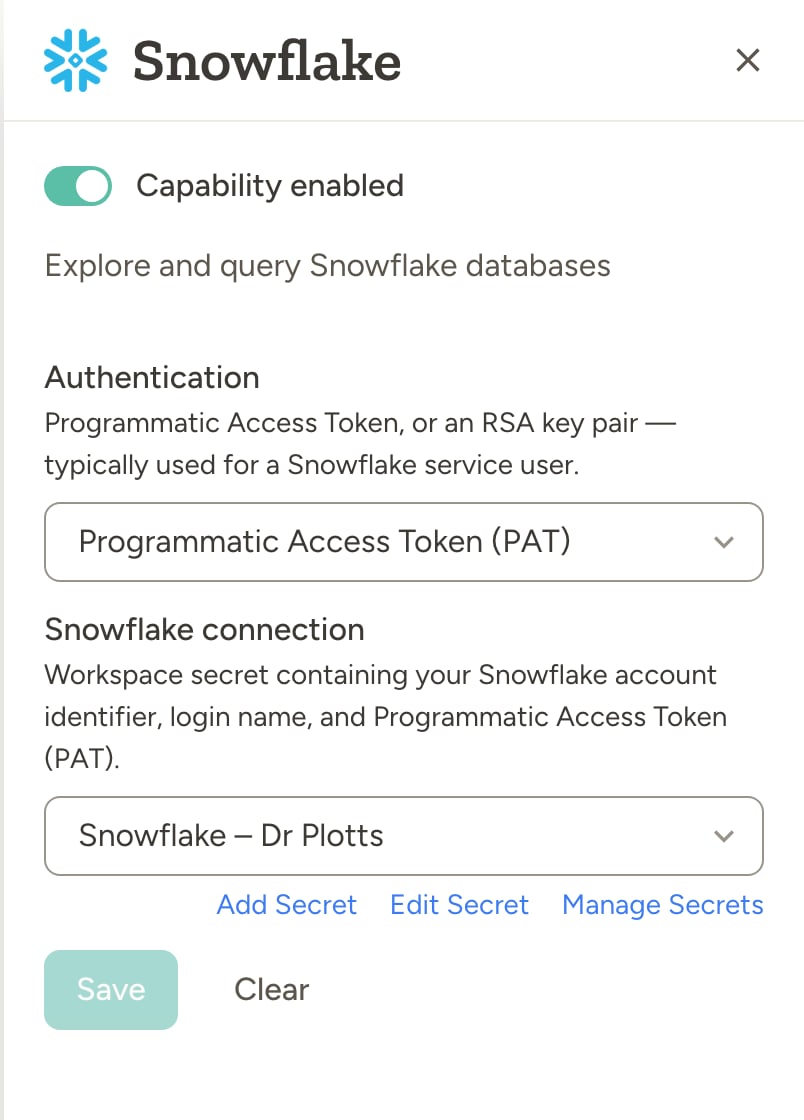
How to enable
Go to Settings → Capabilities and enable Snowflake, pick an Authentication method, then link a workspace secret with your connection details. The same secret can be reused across agents and teams.Example use cases
- Revenue and rankings — “Query our Snowflake sales table and show top 10 customers by revenue this year”
- Scheduled reports — “Every Friday, run a query for weekly signups and post a summary to Slack”
- Data reconciliation — “Compare yesterday’s order count in Snowflake with the count in our CRM and flag any mismatch”
- Schema discovery — “List the tables in our analytics schema and describe the columns in the events table”
- Ad-hoc analysis — “What were our top-performing campaigns last month by spend and conversions? Use the marketing schema in Snowflake”
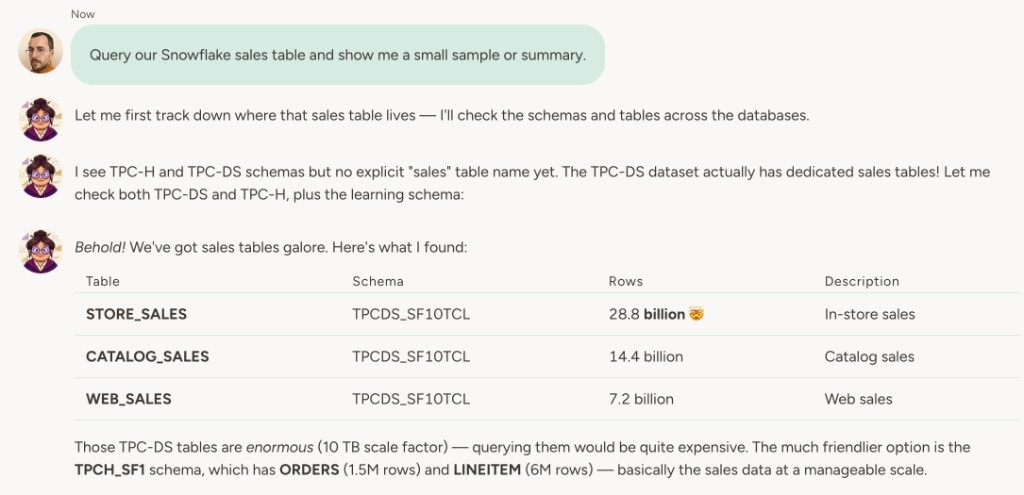
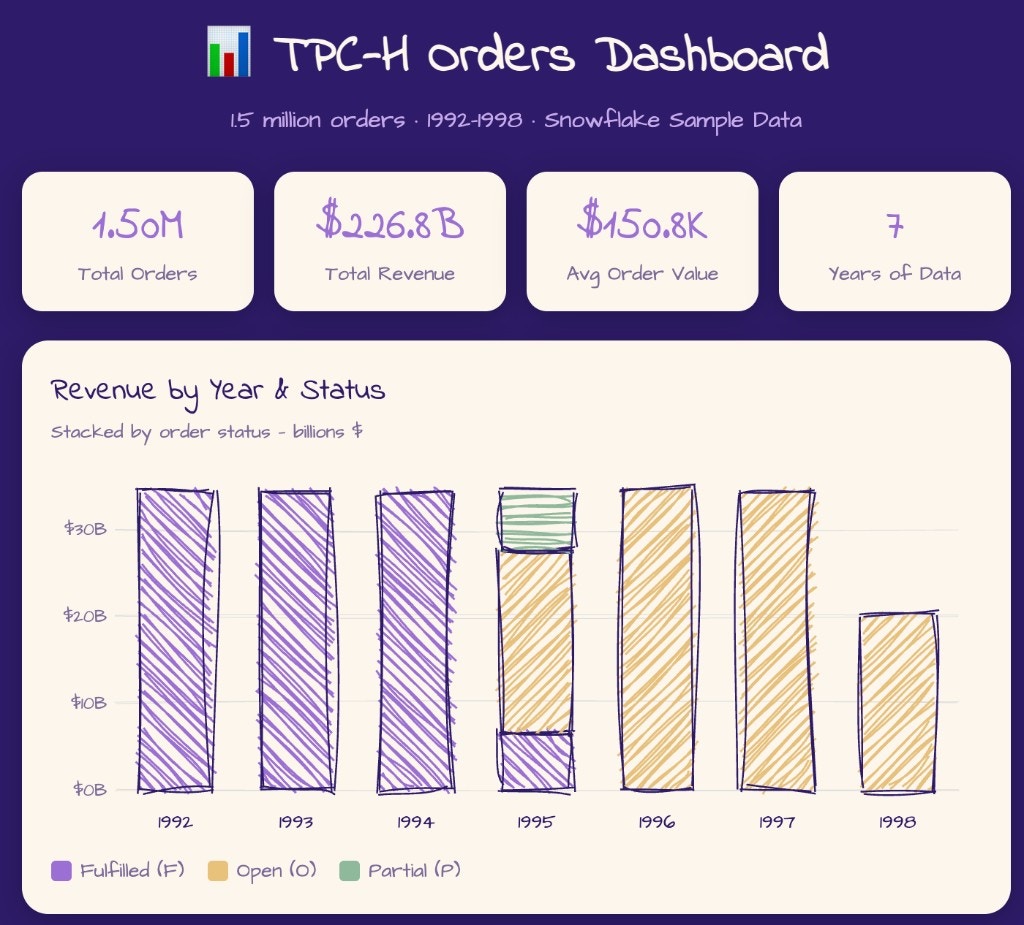
The agent supports read-only operations only (e.g. querying data, listing tables, describing schemas). No DDL or DML.
How to connect Snowflake
1
Get your account identifier and login name
In Snowflake, open Account Details. Note your Account Identifier (format:
<org>-<account>) and Login Name (username).The login name doesn’t have to belong to a person — a dedicated Snowflake service user works, and is the usual choice for an integration.2
Create a credential for that user
Pick whichever fits your Snowflake policy:
- Programmatic Access Token (PAT) — generate one in Snowflake; see Snowflake’s PAT documentation.
- RSA key pair — generate a key pair and assign the public key to the user with
ALTER USER ... SET RSA_PUBLIC_KEY; see Snowflake’s key-pair documentation. Both PKCS#8 (BEGIN PRIVATE KEY) and PKCS#1 (BEGIN RSA PRIVATE KEY) PEM keys work, encrypted or not.
3
Configure in Abundly
Go to Settings → Capabilities, enable Snowflake, and set Authentication to match the credential you created.Then create a new workspace secret and paste in the Account Identifier, Login Name, and either the PAT (secret type Snowflake) or the private key (secret type Snowflake — Key pair (RSA), plus a passphrase if the key is encrypted).All the values live in a single workspace secret, so you only have to enter them once and can share the same secret across multiple agents.
Learn more
BigQuery
Query and explore your Google BigQuery data from the agent.
Steep
Query metrics from your Steep semantic layer without writing SQL.