

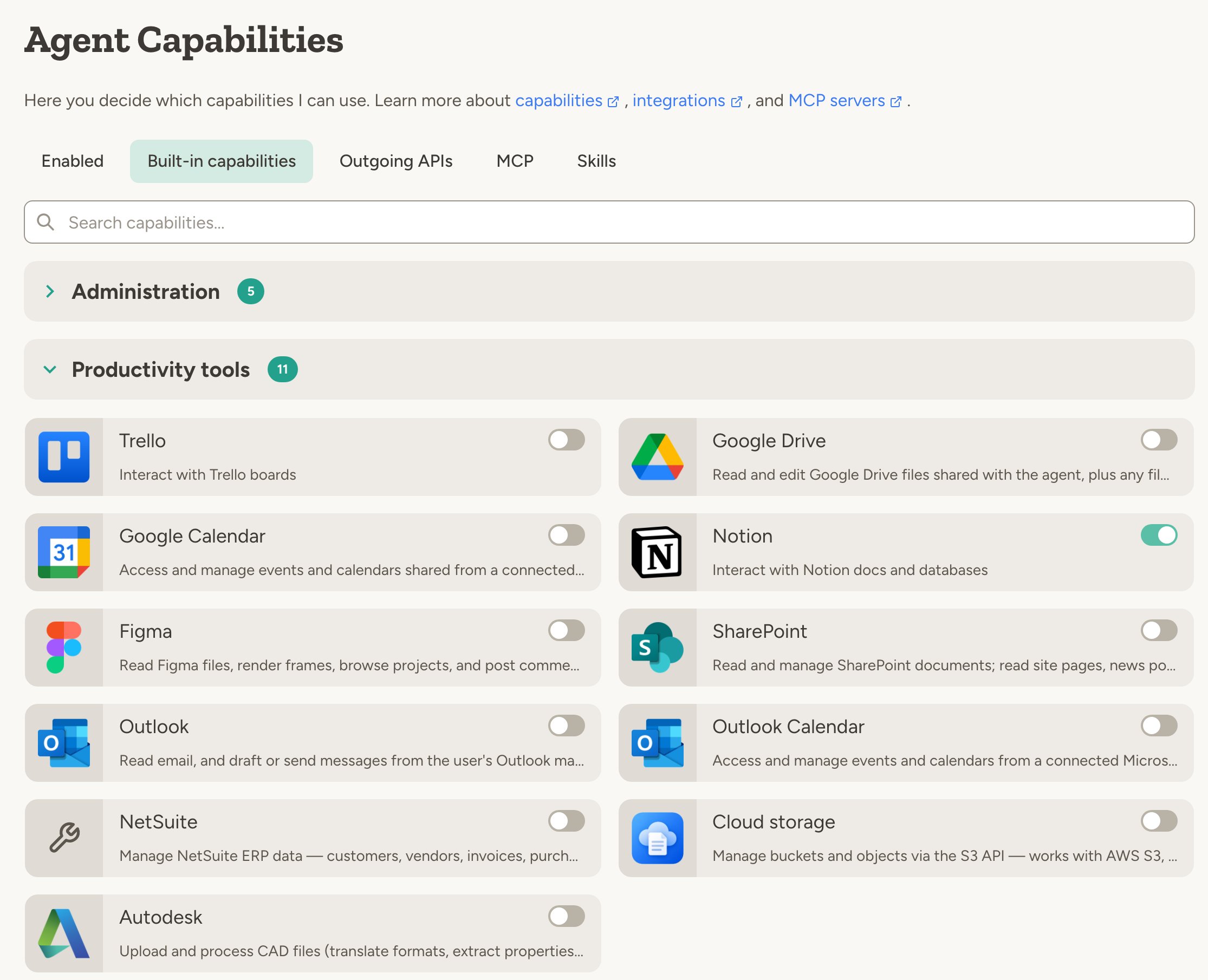
Authentication
Most external services require authentication.- Some integrations use platform-provided credentials — for example, Perplexity, and send/receive email. These work out of the box with no setup required, since they use a shared account managed by Abundly.
- Other integrations require your own credentials — for example, Slack or Notion. These access your personal accounts or customer-specific data, so you must authorize the connection.
Credentials are stored securely and encrypted. The agent only has access to what you explicitly authorize. See Credentials for details.
On-demand capabilities
You don’t need to configure all capabilities upfront. If you ask an agent to do something that requires a capability it doesn’t have, it will automatically request it by showing a capability card in the conversation.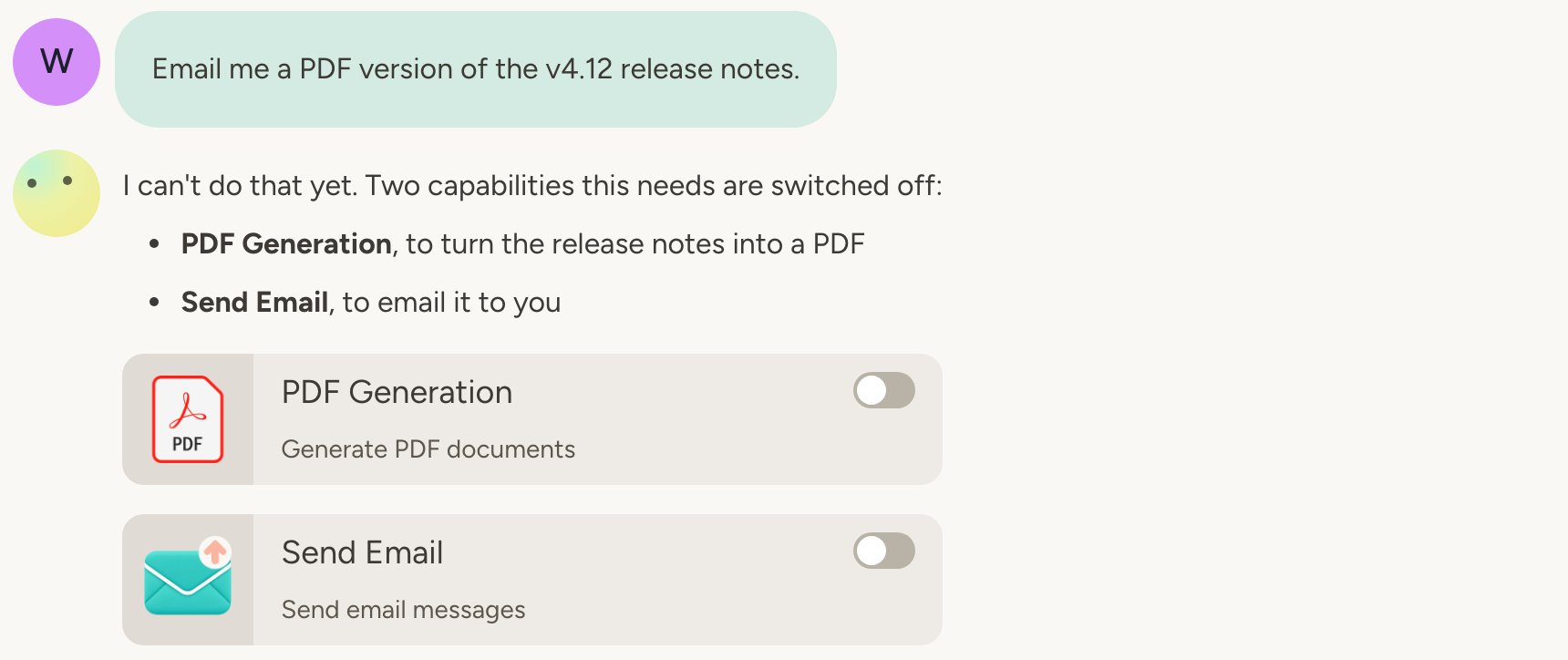
User approval
Some capabilities can be configured to require user approval before the agent executes them. For example, you might want to review outgoing emails before they’re sent. When approval is required, the agent will pause and wait for you to approve or reject the action before proceeding. See User Approval for details on how this works.Model selection
The LLM (Large Language Model) is the “brain” of your agent — it powers the agent’s reasoning, decision-making, and natural language understanding. Agents come preconfigured with a good default model, so you normally don’t need to think about this. However, you can choose a different model under the agent’s Settings → Model Selection. Available models include Claude models (from Anthropic), Gemini models (from Google), and GPT models (from OpenAI).See Model Selection for more info about model switching, and guidance on choosing the right model for your agent.
Extending integrations
If the integration you need is not available, you can extend your agent’s capabilities by connecting to an MCP server or using the HTTP capability.MCP Servers
Connect any MCP server to extend your agent’s capabilities beyond built-in integrations.
HTTP Capability
Connect to any REST API directly — a swiss army knife for custom integrations.
FAQ
Is Abundly integrated with Microsoft ecosystem?
Is Abundly integrated with Microsoft ecosystem?
Yes. Abundly integrates with Microsoft Teams (full remote-chat surface, including meeting transcripts), Microsoft 365 Assistant (one personal connection for mail, calendar, OneDrive, SharePoint and read-only Teams chats), Outlook (email), Outlook Calendar, and SharePoint (documents). All are available to all customers — just enable them in Settings → Capabilities. Workspace admins can also let an agent do the Microsoft-side setup for them with Microsoft 365 Admin, which is enabled per workspace on request.We don’t use Microsoft’s selection of language models—we make independent choices about which AI models to use based on performance for autonomous agent tasks.