

Available models
Your agents get access to a broad range of models through one consistent interface. Within each family, models are listed from most capable (and most expensive) to cheapest:
Some workspaces also include additional families such as Qwen, Mistral, and GLM (EU-hosted via Scaleway serverless inference).
All models work with the same agent capabilities and tools—you don’t lose any platform features by switching models.
Grok models are available when your workspace has xAI configured. Workspace admins control which models are
available—see Workspace administration.
The most expensive models (the top of the cost scale in the picker, such as Fable) require a paid plan. While your
workspace is on a free trial they appear greyed out in the model picker, and they unlock automatically when you
upgrade from the Billing page.
Default behavior
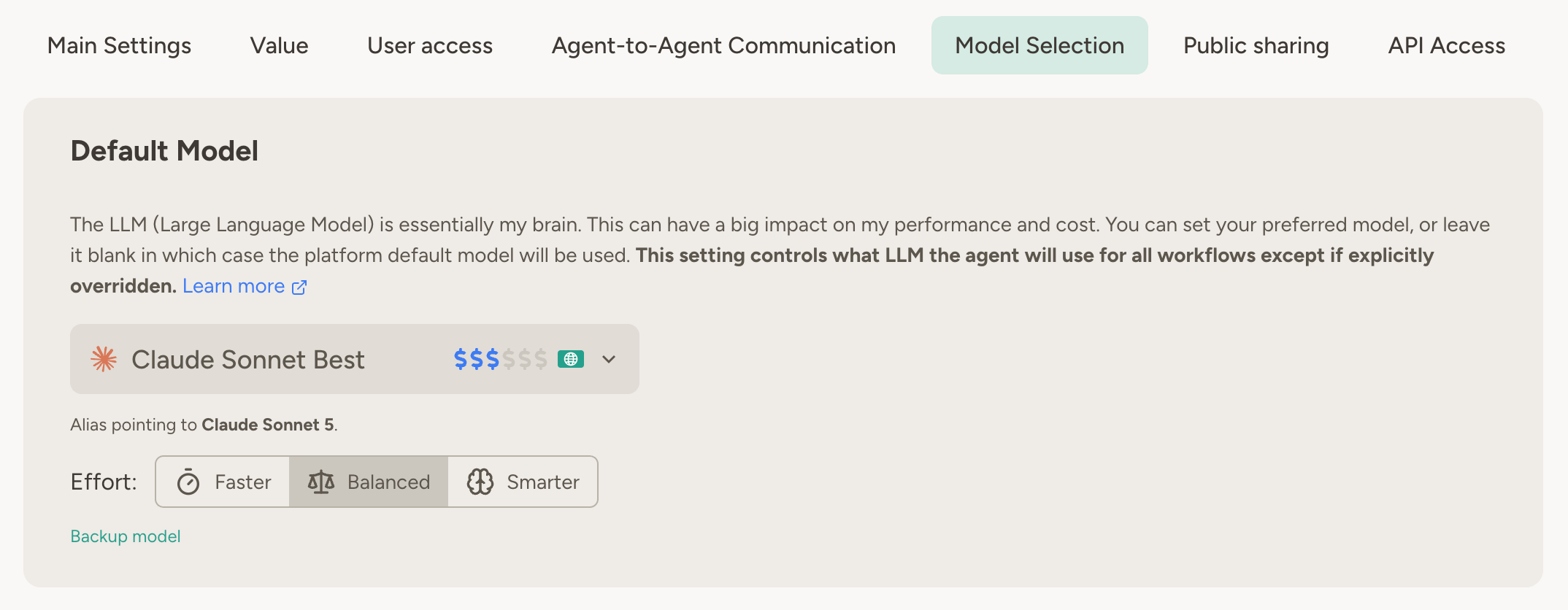
Every agent has a selected model. A new agent starts with your workspace default model if an admin has set one, and otherwise with the Abundly default—the model we think works best for general agentic behavior. The agent’s model picker marks it as (workspace default) or (platform default). Keeping that default is the right choice for most users—you get good performance without having to think about model selection at all. When we change the Abundly default, or an admin changes the workspace default, only new agents are affected. Existing agents keep their model, so their behavior and cost don’t change without anyone choosing it. The default is usually a “Latest” alias, which moves to newer versions within the same model family as we release them.When to pick a different model
You only need to pick a model if you don’t want the default. The common reasons are:- You want more capability. The agent works on hard problems, and you’re willing to spend more credits per request for a more powerful model.
- You want lower cost. The agent does simple or high-volume work that doesn’t need a top-tier model, and a cheaper model does the job for a fraction of the credits.
- You’ve found a better fit. You’ve tested and determined that a specific model works better for your specific use case.
How to compare models
Within a provider’s model family, the ordering is reliable: bigger models are more capable and cost more, smaller models are cheaper and usually faster. For example, in Anthropic’s family, Fable is more capable (and more expensive) than Opus, which is above Sonnet, which is above Haiku. Comparisons across providers are far less reliable. Benchmarks and marketing claims rarely predict how a model performs on your specific task—in some use cases a small, cheap model from one provider outperforms a flagship model from another. Even speed can’t be stated as a fixed fact, since it varies with how busy the provider’s servers are. The most reliable way to compare is to test with your own agent on real work. You can change the model at any time—even mid-conversation—and switch back if you’re not happy. The model picker shows a cost indicator (one to six dollar signs) next to each model. More dollar signs means more expensive—and the scale isn’t linear, so each step up can mean a several-fold price difference. Each model also carries a data-processing location marker: an EU flag when your prompts are processed within the EU, or a globe when the provider processes them globally. Hover over the marker to see the provider and its legal jurisdiction—for example, EU-hosted Claude models on Amazon Bedrock are processed in the EU by a US-based provider. Workspace admins can review the full list under Workspace → Data processors. For a more systematic comparison, use agent evals to run the same test cases across different models—and find the best fit for your use case, or discover that a cheaper model does the job just as well.Model aliases vs specific versions
When selecting a model, you can choose between:- Aliases like “Claude Sonnet Latest” — automatically points to the latest version in that model family
- Specific versions like “Claude Sonnet 5” — locked to that exact version
When an alias is updated, your agent’s behavior may change. Usually for the better—models tend to get smarter—but not
always in the way you expect. For example, a newer model may follow instructions more literally, surfacing problems
in your instructions that the previous model quietly ignored. If that happens, a small tweak to the instructions
usually fixes it.
Deprecated models
When a model is about to be retired, we mark it deprecated. Agents that already use it—directly or through a “Latest” alias that points to it—keep running, and the model pickers label it (deprecated). A deprecated model can’t be chosen for new agents or chats, or as the workspace default. Move your agents to a newer model before the deprecated one is removed.Backup model
Short model outages are handled automatically: the platform retries failed trigger runs with increasing delays, and notifies the agent’s admins if a run ultimately fails. In most cases that’s all you need. For agents where completing the run matters more than consistent behavior, you can additionally configure a backup model: open the Backup model link in the Default Model section under Settings → Model Selection. If a triggered run fails because the primary model is unavailable for the foreseeable future — its usage quota is exhausted, or the provider is refusing the account’s traffic — the run is retried on the backup model instead. (Brief outages are still handled by the normal retries, on the primary model.) Runs that used the backup are clearly marked in the agent’s activity log.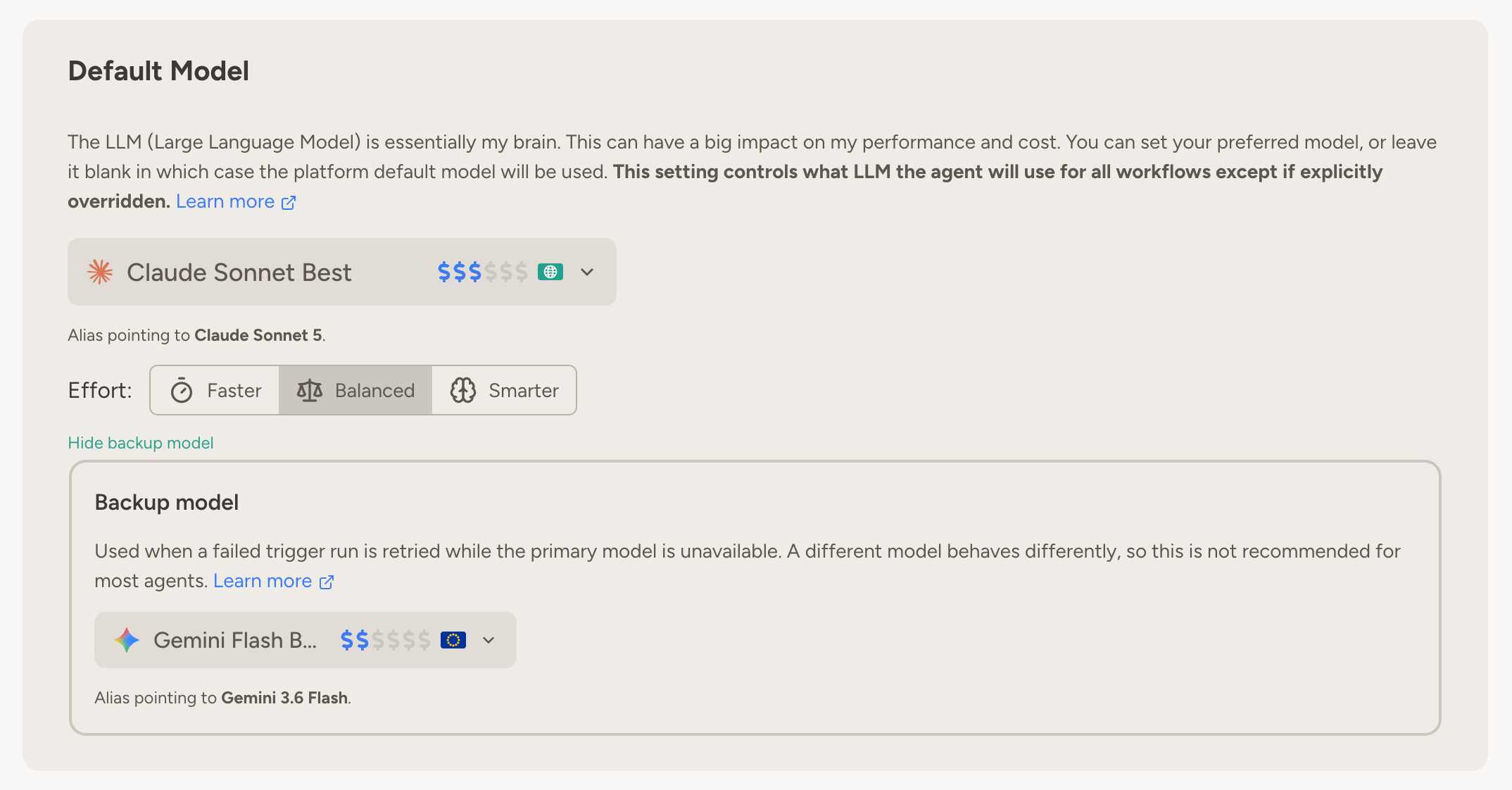
The backup model applies to all trigger runs — schedules, incoming email and SMS, Slack triggers, webhooks, calls to
the agent’s API and MCP endpoints, and so on. It also covers script-linked triggers: if an AI call inside the script
fails because the primary model is unavailable long-term, the whole script is rerun on the backup — including any
actions the script had already taken before the failure. Chat conversations are unaffected — if a model is
unavailable in chat, you can simply retry or switch models yourself.
Per-context model selection
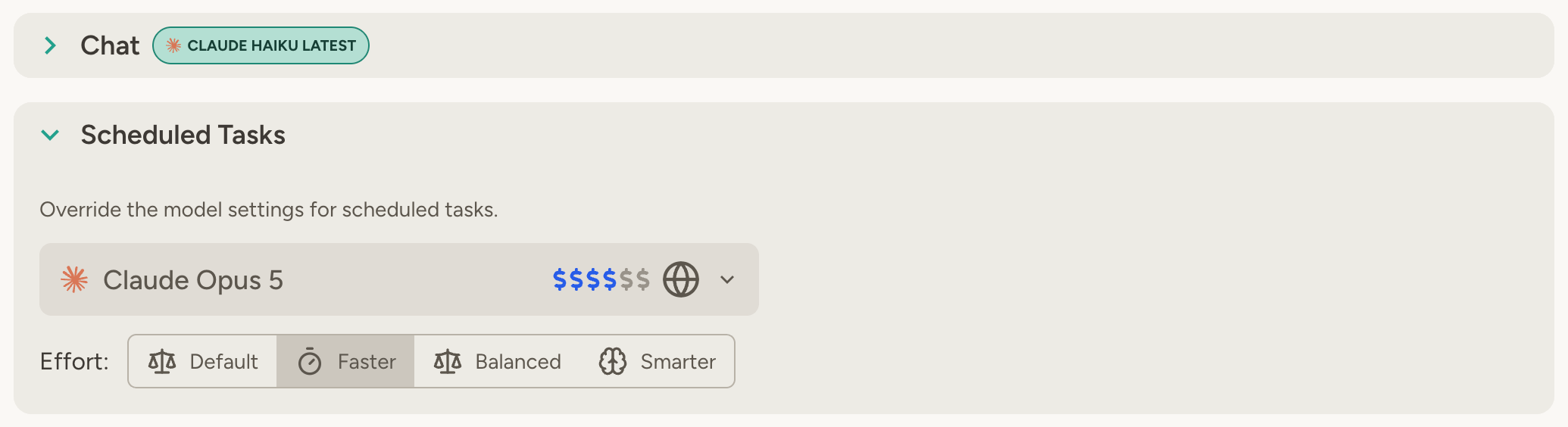
Different contexts in your agent’s life may benefit from different models. Under Settings → Model Selection, below the default model, there is a collapsible section per context where you can configure a model and effort preference:- Chat — Conversations you start with the agent
- Scheduled Tasks — When the agent runs on a schedule
- Incoming Email — When the agent responds to incoming emails
- Slack Messages — When the agent responds to Slack messages
- Microsoft Teams Messages — When the agent responds to Teams messages
- Google Chat Messages — When the agent responds to Google Chat messages
- Agent-to-Agent Messages — When other agents send your agent a message
- Use a cheaper model for handling routine scheduled work
- Use a more capable model for handling incoming emails
Per-task model overrides
Individual scheduled tasks can have their own model and effort setting on top of the per-context default. Open the agent’s Instructions → Scheduled Tasks tab and click Model settings on the task to configure it. This is useful when one particular task needs heavier reasoning than your other scheduled tasks.Per-chat model switching
Each chat keeps its own model: new chats start with the agent’s chat model, and you can switch mid-conversation using the Chat model picker in the chat’s top bar. Switching affects only that chat—the agent’s settings and other chats are untouched. If you can edit the agent, the picker’s menu also links straight to the agent’s default model setting. Some built-in platform skills, such as agent optimization, give much better results on a strong model. If a stronger recommended model is available in your workspace when such a skill is needed, the agent shows a card suggesting a switch to it. You can accept (the switch applies only to that chat) or keep the current model and continue.Remote conversations can’t be switched per conversation. Slack, Teams, Google Chat, and chat widget conversations
use the model configured for that channel; other remote channels, such as WhatsApp, use the agent’s chat model.
Effort level
Most models support thinking, where the model spends effort reasoning before it responds. You control this with a single effort setting:- Faster — The model thinks briefly. Quickest and cheapest, good for simple tasks.
- Balanced — The model’s own recommended default. A solid middle ground for most tasks.
- Smarter — The model is allowed to think more deeply. Best for complex tasks, but may increase processing time and credit usage.
Thinking is never fully turned off on models that support it — Faster uses the model’s cheapest thinking mode. A few
models don’t distinguish every level (for example, Balanced and Smarter behave the same on some models); the platform
always picks the closest setting the model supports.
Workspace administration
Beyond per-agent settings, workspace admins get central control over model usage across the entire workspace. These settings live under Workspace management.Enabling and disabling models
Admins can enable or disable specific catalog models for the entire workspace from Workspace management → Model selection—useful for controlling costs, meeting policy requirements, or standardizing on a smaller set of models. Models that Abundly has disabled platform-wide remain locked and cannot be re-enabled at the workspace level. OpenAI’s GPT Pro models (GPT-5.4 Pro, GPT-5.2 Pro, and GPT-5 Pro) and xAI’s newest Grok models (Grok 4.7, Grok 4.6 and Grok 4.5) are locked this way by default, so they don’t appear in the model picker. Contact support@abundly.ai if you need one enabled for your workspace. If an agent is configured with a model that gets disabled, it stops with a clear error rather than silently substituting a different model—admins stay in control of exactly which models agents run on.Workspace default model
On the same tab, admins can set a workspace default model. New agents in the workspace start with this model instead of the Abundly default—a quick way to standardize your workspace on a particular model or alias. Existing agents keep their model; to move them, select them on the Agent Management page and use Set model. If your workspace requires approval for new models (see below), the workspace default must be set, and must be a specific model version rather than a “Latest” alias — the Abundly default and the aliases both move to new versions when we release them.Policy for new models
When Abundly adds a new model to the catalog, your workspace can either make it available automatically or hold it back until an admin reviews it. Choose the policy under Workspace management → Model selection, in the New catalog models section:- New models on by default — Your workspace benefits from new models as soon as Abundly adds them. This is the default.
- Require approval for new models — New models stay off until an admin enables them, giving you a controlled, admin-curated set of models. Models that are already available stay available, and your workspace default model is pinned to the version you use today.
EU only
If your workspace must keep its data inside the EU, switch the Data processing region at the top of Workspace management → Model selection from Global to EU only. One switch covers everything AI-related: chat models, image generation, voices and transcription, live voice, memory, and research services. Anything that processes data outside the EU is turned off for every agent in the workspace, with no per-agent exceptions; models and services in the EU keep working as before. Before the switch takes effect you see exactly what changes: which models will be disabled and which stay available, which agents are set to a model that will be disabled (you can move them to the workspace default in the same step), and which capabilities lose a provider. If the workspace default model is outside the EU, you choose an EU default first. Agents that keep a disabled model stop with a clear error until someone changes their model. EU only is a filter on top of your other settings, not a rewrite of them. Your per-model switches, your decisions under Data processors, and each agent’s provider choices stay as they are, so switching back to Global restores everything at once. The only change that stays is an agent move you accepted in the dialog. Everything that is off because of EU only is marked Disabled, on the Model selection tab, on Data processors, and on each agent’s Capabilities page; the tooltip or the expanded row says why and points to the data processing region setting.FAQ
Does a 'Latest' alias move the moment a new version is released?
Does a 'Latest' alias move the moment a new version is released?
Not always right away. Newer models are usually better, but not always—especially for agentic work. Since an alias update affects many
agents at once, we do some internal testing before pointing an alias to a new version. That’s why an alias can lag a
little behind a model release. If you want the latest version right away, you can select it as a specific version in
the model picker.
How does pricing work for different models?
How does pricing work for different models?
Each model has different credit costs per token. Within a family, more capable models cost more per request—more
dollar signs in the model picker means more expensive. Check your usage dashboard to monitor
credit consumption.
What happens when I switch models in the middle of a conversation?
What happens when I switch models in the middle of a conversation?
The new model takes over from your next message, with the full conversation history available to it. You can switch models freely within a conversation.
Learn more
Agent Evals
Compare how your agent performs on different models with automated test cases
Usage & Limits
Track credit consumption and set daily limits for your agents
Pricing
Understand how credits and model costs work