

SKILL.md file that starts with a short header giving the skill’s name and when to use it, followed by the instructions themselves. It can also bundle supporting files such as reference documents, templates and scripts, which the agent reads on demand.
In Abundly, the skills you add are ordinary documents in a folder called skills, so they get everything documents have: version history, the document editor and a place on the Docs page. You can add a skill to a single agent, or share it with every agent in a team or in the whole workspace.
The Skills tab
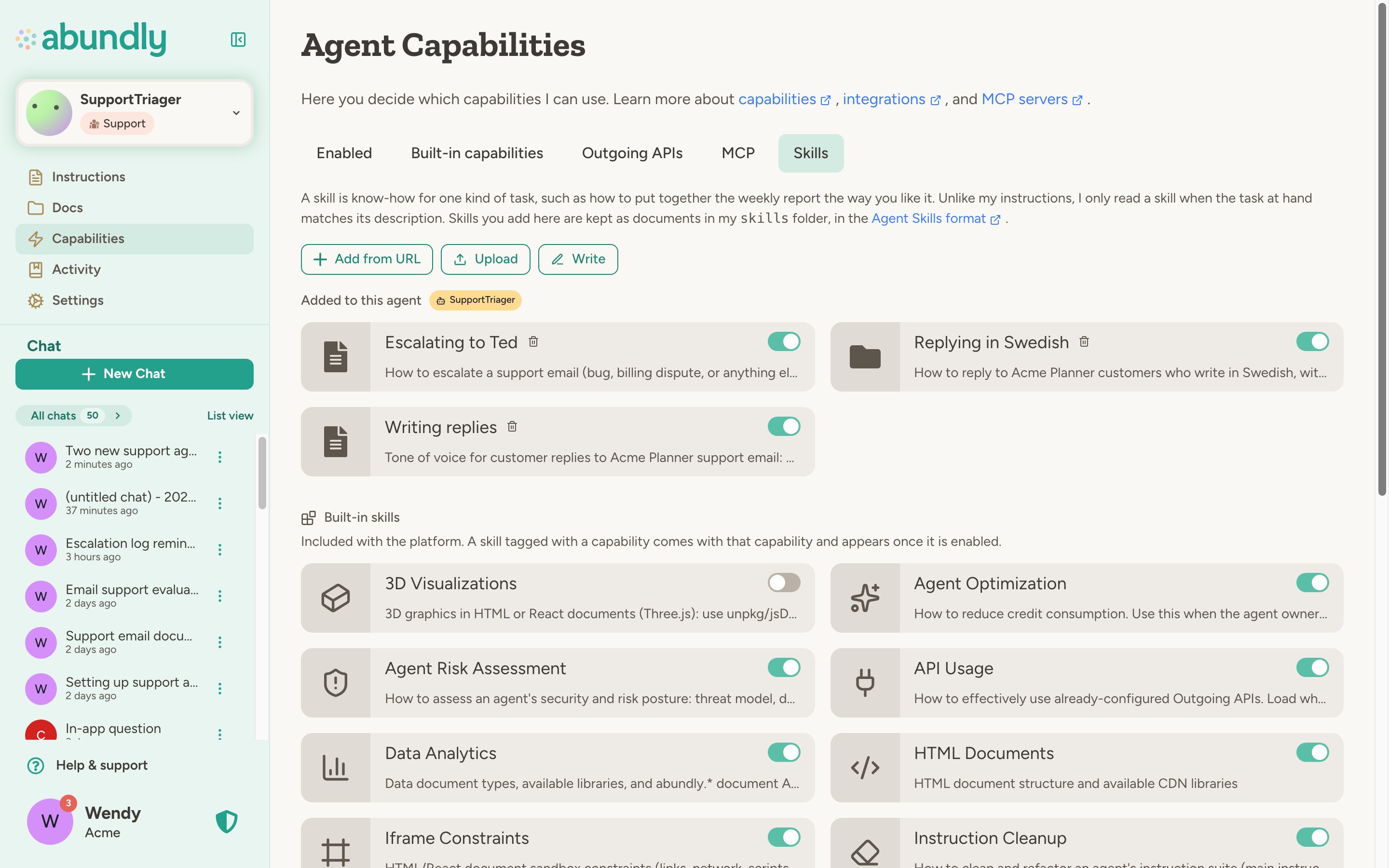
- Added to this agent are the skills you or a colleague added to this agent alone.
- Shared with the team are skills in the team’s documents. Every agent in the team gets them. This group appears when the agent belongs to a team.
- Shared with the workspace are skills in the workspace’s documents. Every agent in the workspace gets them.
- Built-in skills come with the platform. Some are general; others belong to a capability, such as the virtual machine or Slack, and appear here once that capability is enabled. The card is tagged with the capability it came with.
The switch on an agent only affects that agent. A skill turned off for the whole team or workspace shows as
unavailable here, with the reason, and can only be turned back on where it was turned off.
Adding skills
To add a skill to the agent itself, you need Edit access to the agent. To add one to the team or the workspace, you need write access to that team’s or workspace’s documents. Click Add next to the group the skill should go in. You can write one, upload a file, or install a ready-made skill from a link. Install from a link takes a link to the skill. Any of these work:- A folder on GitHub that contains a
SKILL.md, for example a skill in the Anthropic skills repository or in your own repository. Supporting files in the folder are included. - A direct link to a
SKILL.mdfile. - A link to a
.skillor.ziparchive of the skill folder.
.skill or .zip archive, or a single SKILL.md, from your computer. Skills exported from Claude use the .skill format and can be uploaded as they are.
Write one opens the document editor on a new file in that group’s skills folder, so you can paste a skill you have or write a short one on the spot.
For imports, the skill’s name and description come from the SKILL.md header. If the header is incomplete, the platform derives them from the file and tells you what it used. The header is only used at import: afterwards the document’s name and description are what count. Binary files in a skill, such as images, are left out; text files such as reference notes and scripts come along.
Managing skills for a workspace or team
Workspace and team admins manage skills for many agents at once under Capabilities (in Management): pick the workspace, a team or personal agents, and open the Skills tab. A team’s Settings tab links straight there. On the Skills tab you can:- Add, open, remove and turn on or off the workspace’s or the team’s own skills. Turning one off hides it from every agent there, file included, the same as hiding it on the Documents tab. Who can do this follows who can edit that team’s or workspace’s documents.
- On a team, or for personal agents, turn a workspace skill off for just those agents. It’s hidden from them, file included, while the rest of the workspace keeps it.
- Turn built-in skills off for every agent there, the same way you make a capability unavailable.
skills folder on that workspace’s or team’s Documents tab.
Skills are documents
Every skill lives in a folder calledskills at the top of the agent’s, the team’s or the workspace’s documents. The layout is the same on all three levels. Anything placed directly in that folder is a skill:
- A sub-folder that contains a
SKILL.md, plus any supporting files. This is what adding from a link or uploading creates when the skill brings files along. - A single file, usually markdown, that is the guide itself. This is what writing one creates, and what an import creates for a skill without supporting files.
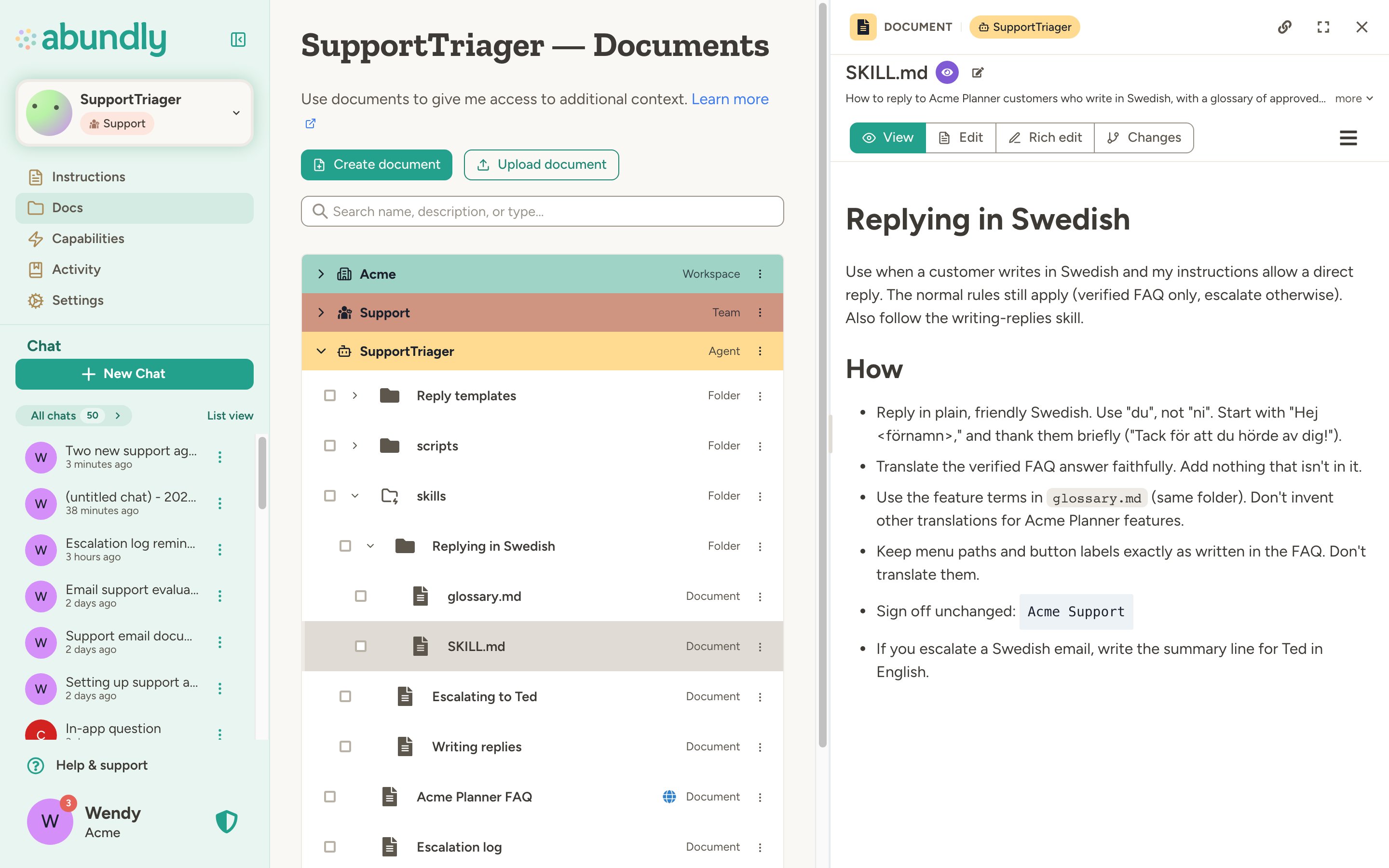
skills folder, move one between agents or up to the team or workspace, or protect an agent’s skill like instructions. A sub-folder without a SKILL.md is not a skill yet.
For an agent’s own skill, off means hidden from the agent. The on/off switch on the Skills tab hides or shows the skill, the same as its agent visibility setting on the Docs page. A team or workspace skill works the same way: turned off on the Capabilities page or hidden on the Documents tab, it is off for every agent there. Hiding a skill’s SKILL.md also turns the skill off. Hiding a supporting file leaves the skill on, but removes that file from the skill. Hiding the skills folder itself turns off every skill in it, and you can’t turn one back on until the folder is visible again.
When two skills have the same id, the most specific one wins: the agent’s own skill replaces a team skill, a team skill replaces a workspace skill, and any of them replaces a built-in skill. The replaced card shows a “Replaced” badge, and the agent loads the other one instead. This is how you tailor a shared or built-in guide to your own way of working.
Once added, the skill is on and listed in the agent’s catalog right away. There is no need to change the agent’s instructions, though it often helps to mention in the instructions when the agent should reach for a skill.
How the agent uses skills
In every conversation the agent sees a one-line summary of each available skill. When a task matches one, it loads the full guide, and any supporting file it needs, and follows it. Agents with the Shell capability, which lets an agent work with its documents using shell commands, also see every skill as a file: built-in ones and their own under~/documents/skills/, and shared ones in the skills folder of the team’s and workspace’s documents.
If you want the agent to always follow a guide rather than load it on demand, put the guide in its instructions or in a protected document instead. Skills are for procedures that only matter some of the time.
Writing a skill
A minimalSKILL.md:
description matters most: it is what the agent reads to decide whether the skill applies, so say both what the skill does and when to use it. Keep SKILL.md focused on the procedure and move long reference material into separate files in the folder; the agent loads those only when the guide points to them. When you write a skill directly in Abundly you can skip the header and fill in the document’s description instead.