

- Agent usage — What each agent delivers, how much it is used, and what it costs
- Credit balance — The workspace’s credits: balance, burn rate, and where the credits went (workspace admins only)
- Member adoption — How actively your workspace members are using Abundly (workspace and team admins)
- User action log — Append-only log of workspace configuration and membership changes (audit trail; workspace admins only)
Agent usage
The Agent usage tab is one table with a row per agent, answering the three questions an owner asks: what did the agent deliver, how much was it used, and what did it cost.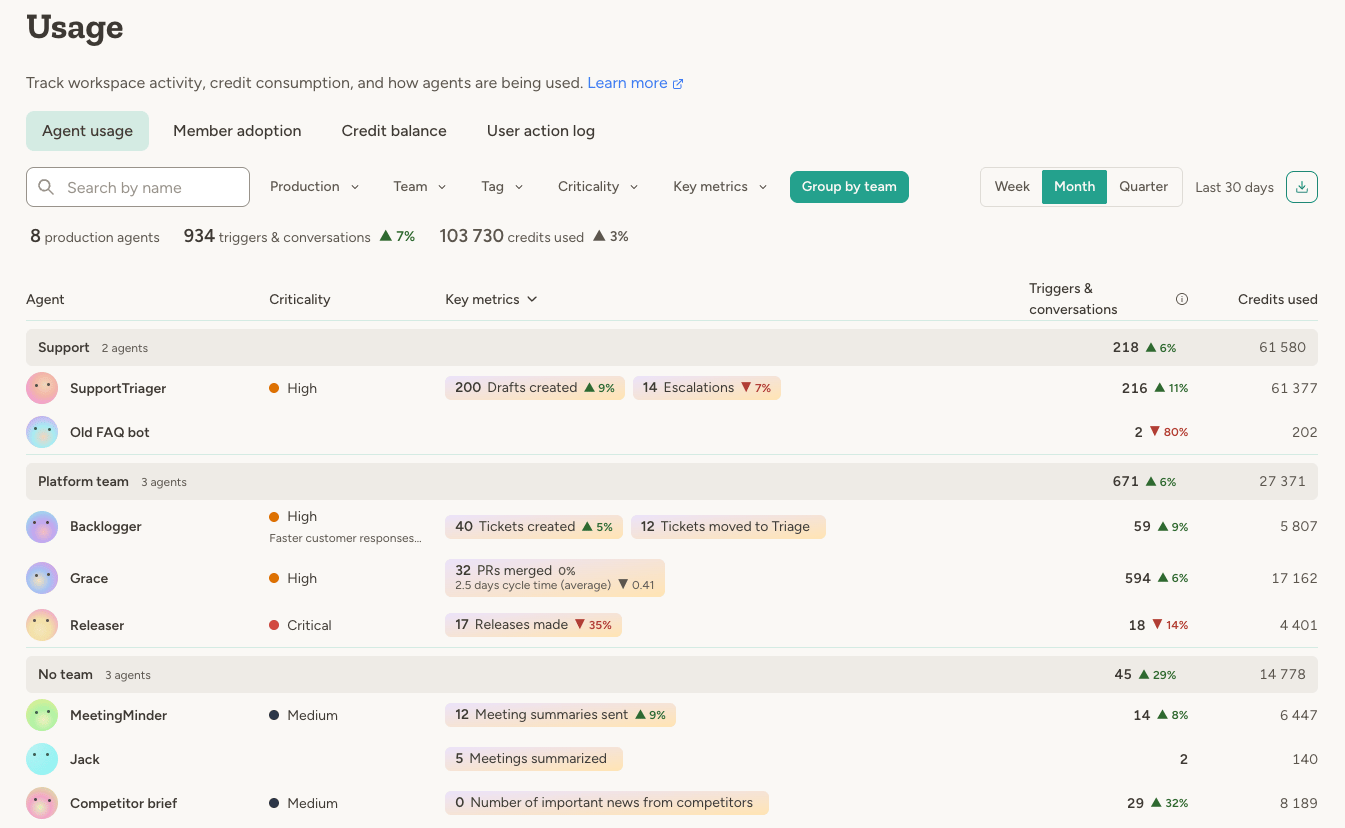
/workspaceapi/agent-usage endpoint, together with the period and filters that produced them. That is the format to hand to an agent or paste into a chat.
Restricted and personal agents, whose default access is Nothing, are listed for the admins who oversee them, so no spending goes unaccounted for, but their row is figures only: the agent’s name is not a link and its key metrics do not open, since only the people it is shared with may enter it.
You see the agents you can use. Team administrators also see every agent of the teams they administer, restricted
ones included; workspace administrators see every agent in the workspace.
Per-agent usage
To see one agent you can access, open its Activity page and use the Usage tab. It shows the same three things over the chosen period, in more depth: each key metric with its daily records, activity by channel and who took part, and credits used broken down by what consumed them, with conversations split by where they took place (in-app chat, Slack, Microsoft Teams), like the Credit breakdown for the whole workspace.Credit balance
The Credit balance tab, for workspace administrators, is about the account rather than individual agents: how many credits are left, how fast they are going, and where they went. Per-agent figures live on the Agent usage tab.- Current balance — Your remaining credits, and the next top-up date and amount when the workspace has a subscription
- Burn rate — Average credits used per day over the last 14 days
- Credits used — Total credits used in the current billing period, or the last 30 days without a subscription
- Credit balance history — How your balance has changed over the selected period, with the monthly allowance marked
- Credit breakdown — Credits used over the last 7, 30 or 90 days by what consumed them: conversations, email, scheduled triggers, API calls, background work and so on. Conversations are split by where they took place (in-app chat, Slack, Microsoft Teams), with messages to agents in Slack trigger mode counted under Slack. Background work is what agents do outside conversations and the triggers listed: writing the diary, tasks, internal upkeep, and events from Trello, GitHub and Teams meeting transcripts. Not traced to a chat is conversation spend that no chat accounts for, such as naming chats, voice input and replies that were stopped or failed.
- Credits used over time — Daily, weekly or monthly bars for a date range of your choice, coloured by agent. When the workspace uses teams the bars are stacked by team instead, and a Team dropdown narrows the chart to one team (or to agents without a team) to see its agents. The largest agents get their own colour; the rest are grouped as “Other agents”. Agents deleted in the last 30 days keep their name, marked as deleted; if their team was deleted with them, they appear under an unknown team.
Member adoption
The Member adoption tab shows how actively people in your workspace are using Abundly — useful for tracking rollout, identifying inactive seats, and spotting which teams have taken to the platform.- Active members — How many workspace members were active (logged in or interacted with an agent) in the selected period
- Adoption rate — Active members as a share of total members
- Average sessions per member — Mean session count across active members
- New members — How many members joined the workspace in the period
Team administrators see member adoption scoped to teams they administer. Workspace administrators see all members.
Agent limits
Three kinds of credit limits can stop an agent, and it stops at the first one it reaches:
The limits do different jobs. The daily limit is a safety net against runaway usage, such as an agent stuck in a loop: it stops the agent quickly, and anyone who can edit the agent can lift it by resetting today’s usage. Monthly limits are for budgeting: a hard cap that only admins can change, so you can plan what an agent, or a whole team, may spend.
The Agent limits tab on the Agent management page lets you set daily and monthly limits for your agents to prevent runaway credit usage.
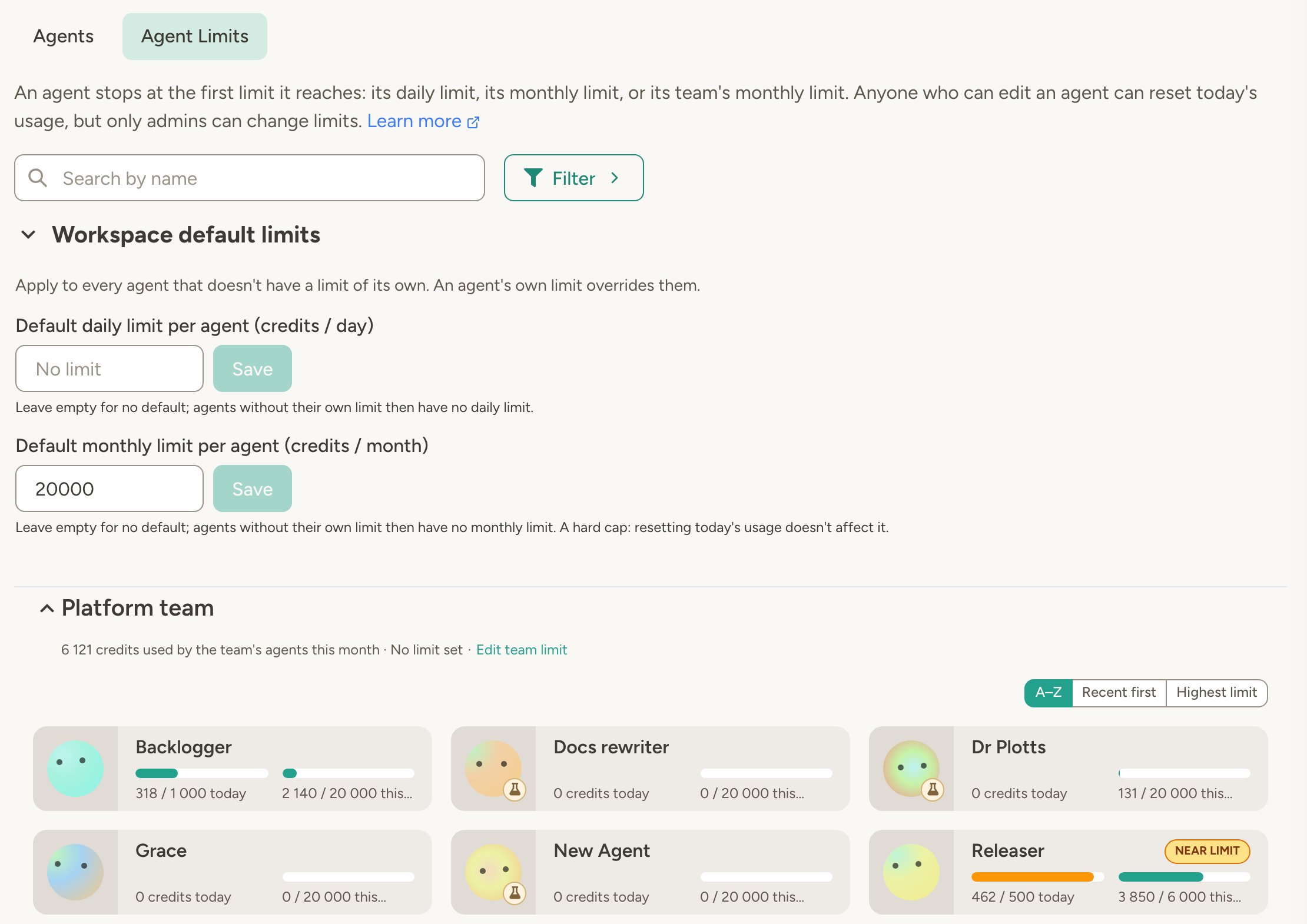
Default limits
Set a default daily limit, and optionally a default monthly limit, that apply to every agent without a limit of its own. They act as a safety net across your workspace. New workspaces start at 5,000 credits per agent per day and no default monthly limit, and workspaces that have already set their own daily default keep it. Only workspace administrators can set or change the workspace defaults.Agent-specific limits
You can override the default daily limit for individual agents, for example to set a higher or lower limit. Setting the limit to 0 will effectively pause the agent. Only workspace administrators and team administrators of the agent’s team can set or change an agent’s daily limit. Edit or Owner access to the agent alone is not enough — it does, however, let you reset today’s usage.Agent monthly limits
Because anyone with Edit or Owner access can reset today’s usage, the daily limit isn’t a hard ceiling. When you need one, give the agent a monthly limit: select the agent on the Agent limits tab, or open its Settings → Usage & Limits, and enter the credits it may use per month. Agents have no monthly limit unless you set one, or set a default monthly limit for the workspace, which an agent’s own monthly limit overrides. A monthly limit is a hard cap:- Only workspace administrators and team administrators of the agent’s team can set, change, or remove it.
- Resetting today’s usage doesn’t affect it.
- When it’s reached, the agent pauses, in chat and on triggers, until an admin raises the limit or the calendar month rolls over (UTC).
When limits are reached
When an agent hits one of its limits:- The agent stops immediately and shows an error message
- No additional credits are consumed
- All data and configurations remain intact
- A daily limit resets automatically at UTC midnight, and a monthly limit on the 1st of the month
- Yellow badge when an agent approaches its limit (80%+)
- Red badge when the limit is exceeded
Workspace administrators can set the workspace default daily limit, set team monthly limits and the monthly limit for
personal agents, and edit the daily and monthly limits of any agent. Team administrators can edit the daily and
monthly limits of agents in teams they administer.
Team monthly limits
If your workspace uses teams, workspace administrators can cap how many credits each team consumes per month. When a team reaches its monthly limit, every agent that belongs to the team pauses until the limit is raised or the calendar month rolls over. Set monthly limits from the Settings tab on the Team management page. Each team card shows the current month’s usage, the configured limit (if any), and a progress bar. Limits can also be set and read through the Workspace API or by an agent with the Workspace Manager capability. Team monthly limits are enforced in addition to the agent’s own daily and monthly limits: an agent is blocked as soon as any of them is reached. Personal agents have a monthly limit of their own: one amount per person, shared by all of that person’s personal agents in the workspace, set under Workspace → Settings → Personal agents. When someone reaches it, all of their personal agents pause until the month rolls over or a workspace admin raises the limit. Monthly limits follow the calendar month in UTC, and usage starts again from zero on the 1st. When an agent draws on a monthly limit, everyone who can use it sees that limit:- In the agent’s Settings → Usage & Limits, under Team limit or Personal agents limit: this month’s usage against the limit, with a progress bar. The limit isn’t the agent’s own—it’s shared by all of the team’s agents, or all of the owner’s personal agents.
- In chat, as a banner when usage is approaching the limit (80%) and when it has been reached. Workspace admins also get a link to edit the limit.
Sidebar usage widget
When you open an agent, the left sidebar can show a compact usage widget with:- Credits used today, with a progress bar when the agent has a daily limit
- Credits used this month, with a progress bar, when the agent has a monthly limit
- A quick link to that agent’s Settings → Usage & Limits
Resetting daily usage
You can manually reset an agent’s daily credit counter at any time. This is useful if an agent hit its limit due to a one-time spike and you want to resume normal operation without waiting for midnight UTC. Anyone with Edit or Owner access to the agent can reset it, as can workspace administrators and team administrators of the agent’s team. Use access is not enough. Changing the daily limit itself is stricter — see Agent-specific limits. Resetting only lifts the daily limit. While the agent’s monthly limit or its team’s monthly limit is reached, Reset today is disabled, since the agent would stay paused anyway.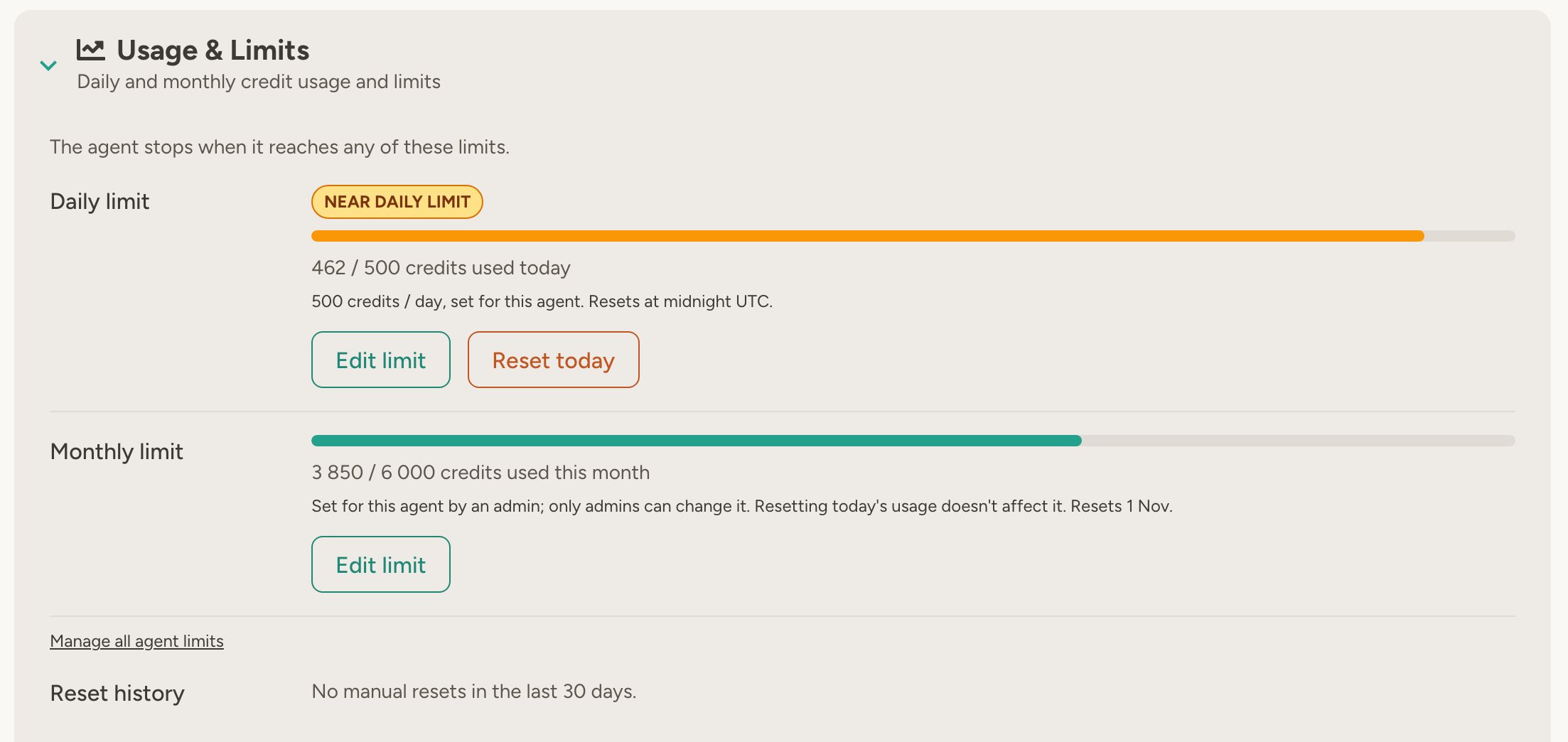
- Open the agent’s settings
- Under Main Settings, find Usage & Limits
- Click Reset Today
What counts toward credits
Both LLM usage (tokens) and tool usage count toward credits:- LLM tokens — Input, output, and reasoning tokens are converted to credits based on model-specific rates
- Tool usage — Tools like web search, document processing, and external APIs also consume credits
User action log
The User action log tab gives workspace administrators an append-only audit trail of configuration and membership changes across the workspace — useful for reviewing who changed what, who invited whom, spotting unexpected changes, and satisfying compliance requirements. Tracked change types include:- Agents — created, edited, enabled/disabled, deleted, ownership and team changes
- Teams — created, edited, membership and admin changes
- Workspace settings — configuration, capabilities, model selection, notification settings
- Secrets — created, updated, deleted
- Outgoing APIs — created, updated, deleted
- HTTP APIs and documents — created, updated, deleted
- Members and invitations — invitations sent, revoked, and declined; members joining (with who invited them), leaving, and changing role; people added to and removed from teams; support role grants
Sensitive text fields — such as agent instructions and prompts — are shown as short hash tokens rather than raw
content. This lets admins confirm that content changed without exposing the underlying text.
Filtering and export
Filter by date range, actor, resource type, and action type. Export the filtered view as CSV or JSONL (up to 50,000 rows per export).FAQ
What time zone is used for the daily reset?
What time zone is used for the daily reset?
UTC. The daily limit resets at midnight UTC, not your local time zone.
Can I set an agent to unlimited while keeping a default limit?
Can I set an agent to unlimited while keeping a default limit?
Not directly. If you want one agent to be unlimited while others have a default limit, set that agent’s limit to a
very high number (e.g., 999,999 credits/day).
Should I use a daily or a monthly limit for an agent?
Should I use a daily or a monthly limit for an agent?
Both, for different jobs. The daily limit catches a runaway day, and the people working on the agent can reset
today’s usage when they need to keep going. The monthly limit is the ceiling: use it when an agent’s spend must not
go past an amount, since only admins can change it and resets don’t touch it.
What happens when my personal agents reach their monthly limit?
What happens when my personal agents reach their monthly limit?
All of your personal agents pause, in chat and on triggers, until the month rolls over or a workspace admin raises
the limit. The limit is per person, so what one of your personal agents uses counts for all of them. Team agents you
use are unaffected: they draw on their team’s limit instead.
Learn more
Monitoring
Track agent activity, execution logs, and performance
Agent Optimization
Detailed examples of credit usage and optimization strategies